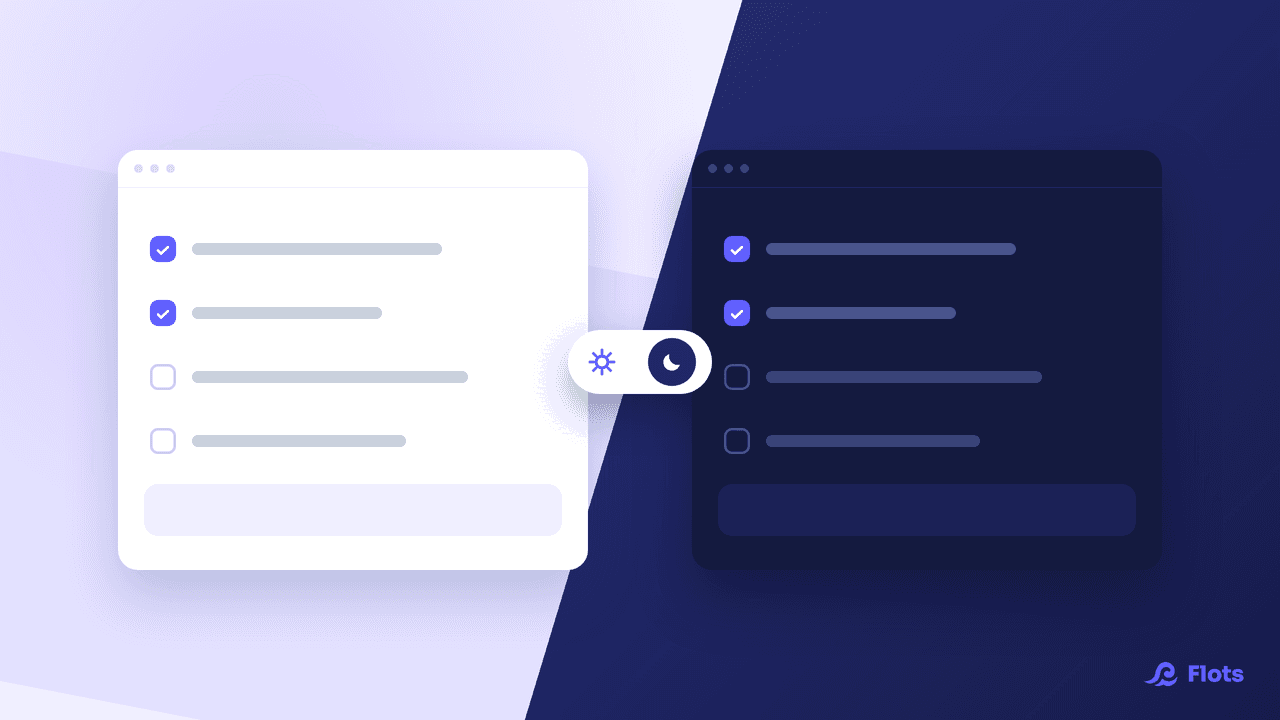
Checking your schedule at 11 pm against a white background is a habit you pay for straight away. Flots now has a dark mode, along with two other appearance settings.
Turning on dark mode: three appearance settings
The choice is made in the app settings, in the appearance section.
- Light, the display Flots has always had.
- Dark, for the evening and for dimly lit rooms.
- System, which follows your device setting.
The change applies immediately, with no restart and no reload.
The choice is remembered on the device where you make it, not on your account. So you can keep the dark theme on your phone, often consulted in the evening, and the light theme on the desktop computer you use under bright light. The two coexist without contradicting each other.
| Your situation | The setting that fits |
|---|---|
| You mostly check in the evening | Dark |
| Your device already switches on its own | System |
| You work under steady lighting | Light or Dark, whichever you prefer |
| You share your screen in meetings | Light, easier to read on a projector |
What does the System setting do on mobile and on the web?
On mobile, System follows your phone's appearance. If it switches automatically at sunset, Flots switches with it.
On the web, the theme follows your browser's appearance setting, which is not always the one set by the operating system. A browser forced to light will keep Flots light, even on a computer set to dark. The app says so, to save you a long search.
A dark mode applied across the whole app
The theme is built on the app's layer of semantic colour tokens: every surface, every piece of text and every border has its light value and its dark value.
In practice, that avoids the usual pitfall of dark modes bolted on afterwards, where a forgotten screen stays white and dazzles you at the wrong moment.

One setting per device
Dark on the phone, light on the computer: each device keeps its own choice.
Notes, planning and whiteboards in dark mode
Dark mode helps most on the screens where you spend time: the note editor, the planning view, the whiteboards.
On a whiteboard, the canvas background stays adjustable on its own, since a diagram meant to be exported does not necessarily have to be dark.
Each of those three screens has an article of its own: taking notes in Flots, the planning view and whiteboards.
Your organization, readable at any hour.