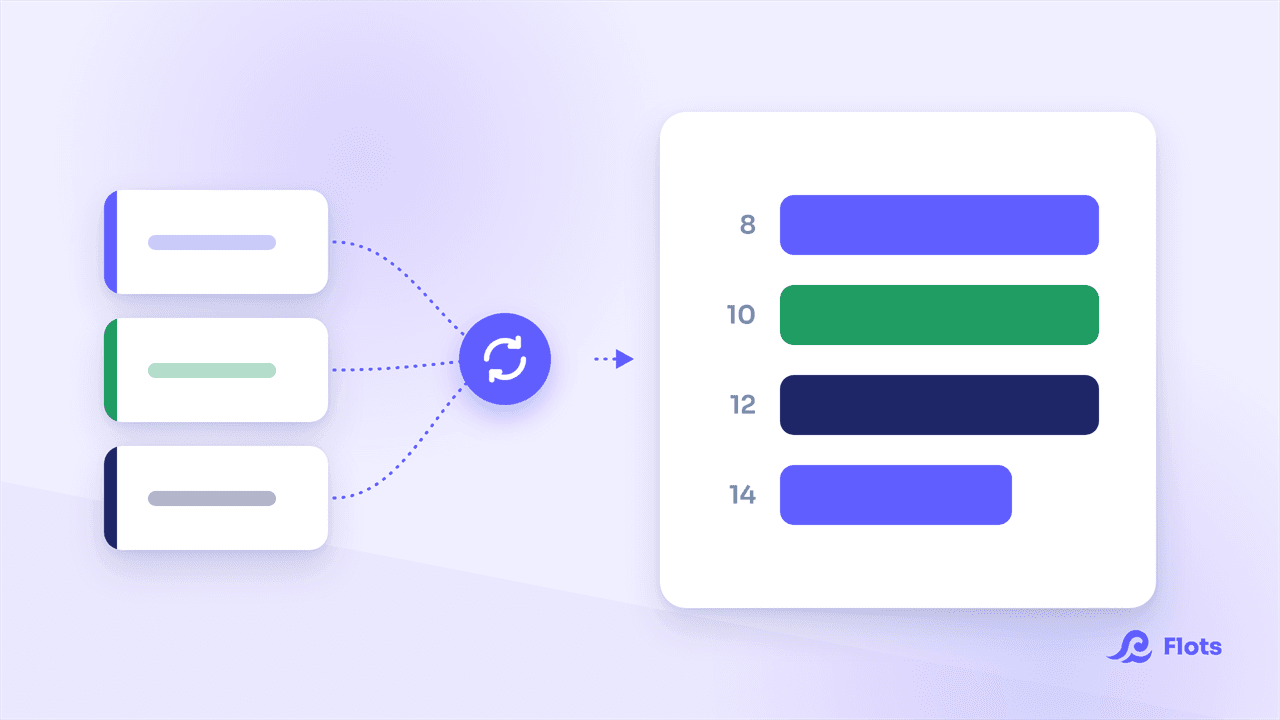
Tracking tasks on one side, setting appointments on a separate calendar on the other: it works, but constantly switching between the two ends up wearing you down. With Flots' new Planning view, you organize your day and plan your week in one place. Task list and calendar are finally brought together on a single screen.
Task list and calendar: two effective views, but separate
Until now, Flots offered two ways to organize yourself. The task list gives an unbeatable overview: everything is right there in front of you. The calendar answers a different question, the one of when to do what. Two useful tools, but each on its own, which meant constantly juggling between them to get a clear picture of your day.
What Flots users asked us for
Our beta testers told us directly, and two needs kept coming up:
- Seeing the day from both angles at once: the tasks to do and their place in time. Ideally, seeing at a glance both the tasks scheduled for today and the ones sitting off to the side, with no date, that could easily fit somewhere in the day.
- Planning better: the list is perfect for the big picture, but it's hard to place things in time and estimate what really fits in a day.
Our answer: unify without breaking what works. The list view and the calendar view stay exactly as they are. We're adding a third view that brings together the best of both.
Organizing your day with the Planning view
The Planning view combines the to-do list and the timeline on the same screen. On one side, the direct, reassuring "to-do" logic. On the other, the flow of time, showing when to handle each task.
In practice, on a single screen, you get:
- Your tasks scheduled for the day, placed on their time slot.
- Tasks with no date, set off to the side, within reach and ready to be dragged into your day whenever time allows.
- An instant read on your workload: you know right away whether the day is light or already packed.
It's the ideal view to prepare and steer your day. No more switching between two screens, it all happens in one place.
Planning your week and spreading out your workload
Preparing your day is good. Anticipating the days ahead is even better. The week view extends the same idea over seven days.
It's especially interactive: you move a task from one day to another, adjust, act directly on the schedule. Perfect for spreading out your workload, unclogging overloaded days and calmly preparing for the week ahead. It all stays compact and operational: every task remains one gesture away from action.
Before / after: what the Planning view changes
| Before | With the Planning view |
|---|---|
| List or calendar, never together | Tasks and calendar on one screen |
| Undated tasks easy to forget | Undated tasks visible, ready to place |
| Hard to estimate the day's workload | Workload readable at a glance |
| Week planned by hand | Interactive week view: drag and adjust |
Frequently asked questions
Do the list view and calendar disappear?
No. The list view and the calendar view stay available exactly as before. The Planning view is added alongside these two views, it doesn't replace them.
Does the Planning view show tasks with no date?
Yes. Undated tasks are shown off to the side, ready to be dragged into your day if you decide to handle them today.
What's the difference between the day view and the week view?
The day view is for organizing and steering the current day (tasks, time slots, workload). The week view is for looking ahead: it shows tasks across seven days and lets you move them from one day to another to prepare for what's coming.
The Planning view is the piece that was missing between "seeing everything" and "knowing when to do it". If you're discovering Flots, take a look at the story of the project too. And to get a feel for it, the simplest way is to try it on your own week.
Switch to the Planning view.
Bring tasks and calendar together, organize your day and plan ahead for your week, all in one place.