Your calendar holds more than what you put in it. A timetable published by a school, an on-call rota, a club's fixture list, an association's calendar: those things live elsewhere, change without you, and end up either copied out by hand or not followed at all.
Flots can now subscribe to them. You paste the address of an .ics feed, and its events land in your calendar as dated tasks, with their time and their location.
Subscribing to a calendar feed in two fields
The setting sits in Settings, the Calendar section, the Connections tab, under the ICS calendar link block. You need two things:
- Calendar feed URL, the address given to you by the source.
- Name, whatever you want to read in your settings.
The Add calendar feed button starts the import straight away. Since .ics is a standard, the list of possible sources runs long: university timetables, public team calendars, calendars exported from Google Calendar or Outlook, competition schedules, and that's only a sample.
Flots fetches the file from its own servers, without your credentials. The address therefore has to be publicly reachable, over http or https: those are the only two schemes accepted. A link starting with webcal:// is rejected even though it points at the same file; swap that prefix for https:// and it goes through.
The feed keeps itself up to date
Once the subscription is in place, Flots resyncs the feed every twenty minutes by default. A class moved late in the afternoon is up to date in your calendar before the next morning, with nothing to do.
Your settings show the state of every feed at all times: Synced, Sync failed or Not synced yet, the date of the last successful sync and the number of imported tasks. The Sync now button forces a read when you don't want to wait.
The import is read-only, and that's deliberate. You can move or rename an imported task inside Flots, nothing travels back to the source, and the next sync takes the feed as the reference.

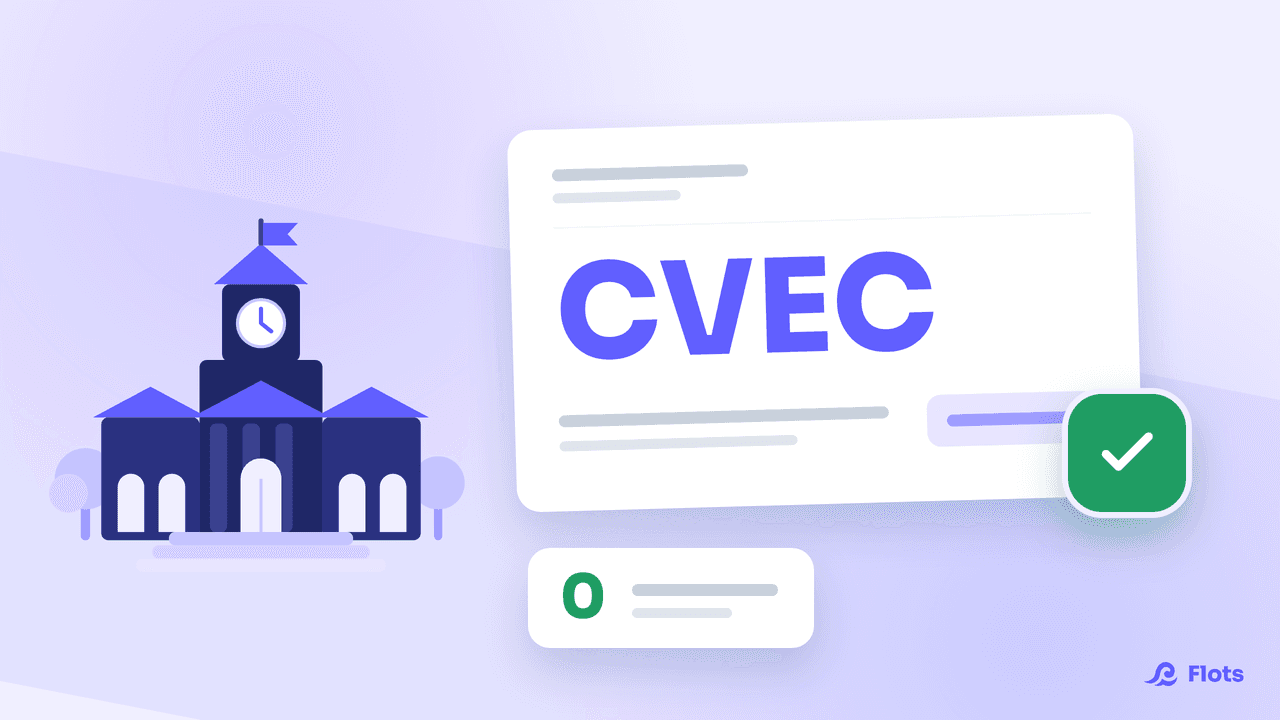
University timetable
The full procedure for getting your sync URL out of ADE and adding it to Flots.
Read the guideOne colour per calendar
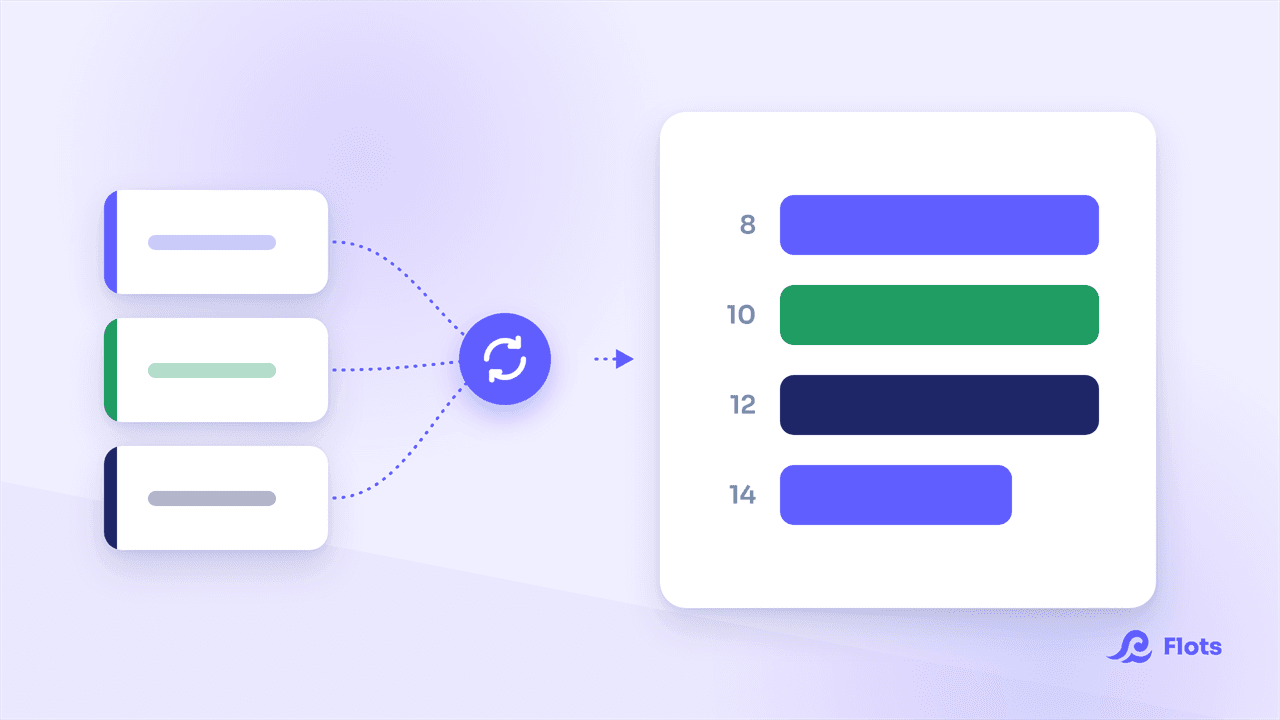
The same update gives every connected calendar its own colour and its own visibility switch, so three sources in one day stay readable. The setting, and the difference between hiding a calendar and removing it from syncing, are covered in a guide of their own: several calendars, one colour each.
Google Calendar: export without importing anything back
The same update adds a setting on the Google Calendar side: Import nothing from Google. Flots keeps sending your exported tasks to Google but imports no events at all, including on the first connection.
That's the setting to pick when your team reads Google Calendar while you plan in Flots, and you don't want to see what you just sent over coming back into Flots.
If a feed refuses to sync
Three limits explain most failures, and they're deliberate.
A feed has to weigh less than 5 MB and answer in under fifteen seconds. An export covering several years for an entire institution runs past those bounds quickly: narrow the date range or the selection at the source. Flots follows three redirects at most, enough to absorb URL shorteners without wandering off blind.
Finally, no authentication travels with the request. A feed behind an intranet or a login portal will stay on Sync failed, and the detail shown under the feed will tell you which of these limits got in the way.
Both connections sit in the same tab: your Google account on one side, calendars published elsewhere on the other. For everything else the Flots calendar can do, the calendar guide covers the ground.
All your calendars in a single day.