Plugging your Google Calendar into an organization tool always raises the same fear: watching six months of meetings, birthdays and reminders land in a space you wanted to keep clean.
Flots now lets you choose the direction of the sync.
Sending your tasks to Google without importing anything
The setting sits in the calendar's advanced settings, under the label Don't import anything from Google.
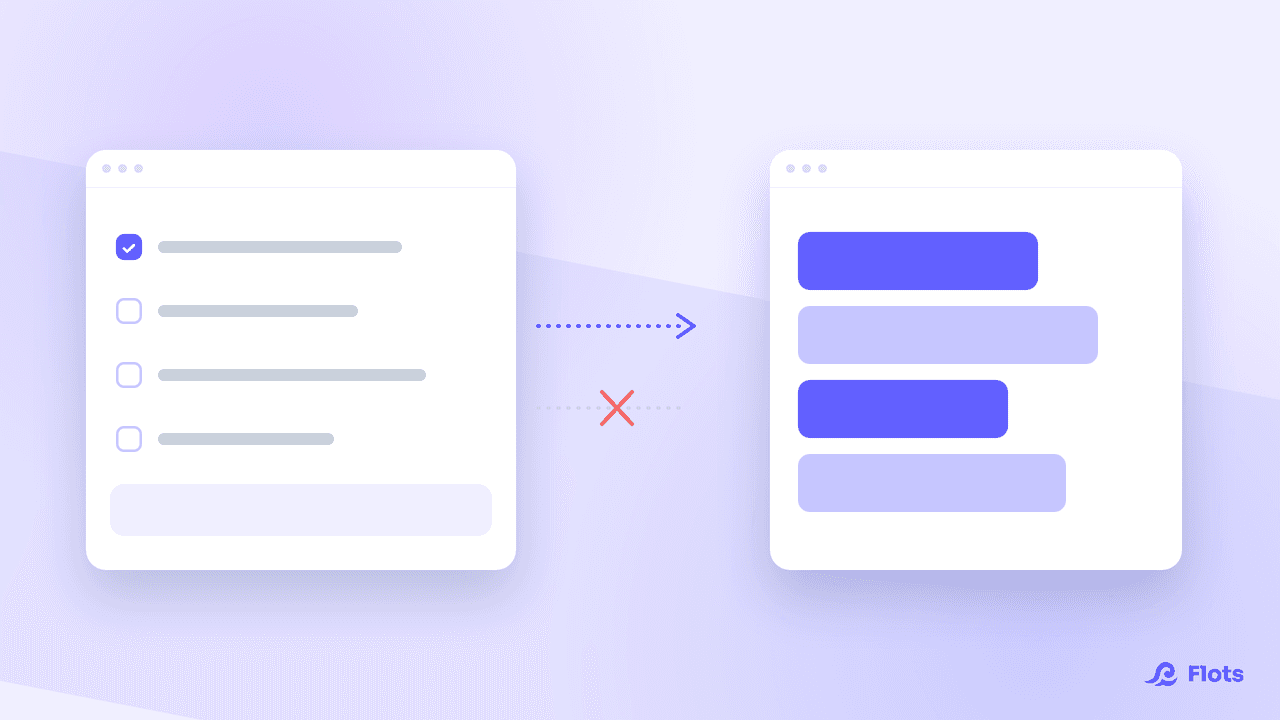
Turned on, it makes the connection one-way: Flots sends your tasks to Google and imports no events at all, including on the first connection.
That "including on the first connection" matters. The initial hook-up is usually what fills everything at once, and what costs you the half-hour of cleaning up that follows. Here there is no catch-up at start-up, so there is nothing to sort out afterwards.
The direction kept is the one going out. Your Flots tasks still travel to Google, with their times, and still show up for anyone reading that calendar. What you cut is only the return trip.
| What you want | The setting |
|---|---|
| See your Google meetings in Flots | Leave "Don't import anything from Google" off |
| Publish your tasks to the calendar your team reads | Turn on "Don't import anything from Google" |
| Stop ticking the export task by task | Turn on "Export by default on creation" |
When cutting the import from Google makes sense
The most common case is the shared calendar. You want your work slots to show up for your colleagues, without their meetings crowding your week in Flots.
Then comes the work calendar you did not choose, the one the employer provides and nobody really controls. You publish to it, you do not import from it.
And there are those who have already done their sorting elsewhere: Flots is the source of truth, Google the display for everyone else. Importing would duplicate the work.
The setting lives on the calendar, not on the account. So you can keep the full sync on your personal calendar and cut the import on the work one.
Exporting a task to Google stays a choice
A task does not travel to Google on its own: you tick the export, task by task. A tool that dumps everything by default ends up polluting the calendar it was meant to serve.
Two settings soften that behaviour if you find it too cautious. They do not deal with the same tasks: the first covers the ones you create in Flots, the second the ones that come from Google.
Export by default on creation ticks the export in advance in the new task form. You keep control, the box is only pre-ticked.
Send my changes back to Google covers the tasks that came from Google. When you edit one in Flots, the update travels back to the original calendar, if that calendar allows it: a calendar shared read-only, for instance, will not accept the correction.

An exported task needs a date
An event takes up a slot. Without a valid date and time, a task cannot become a Google event.
Moving a task you have already exported
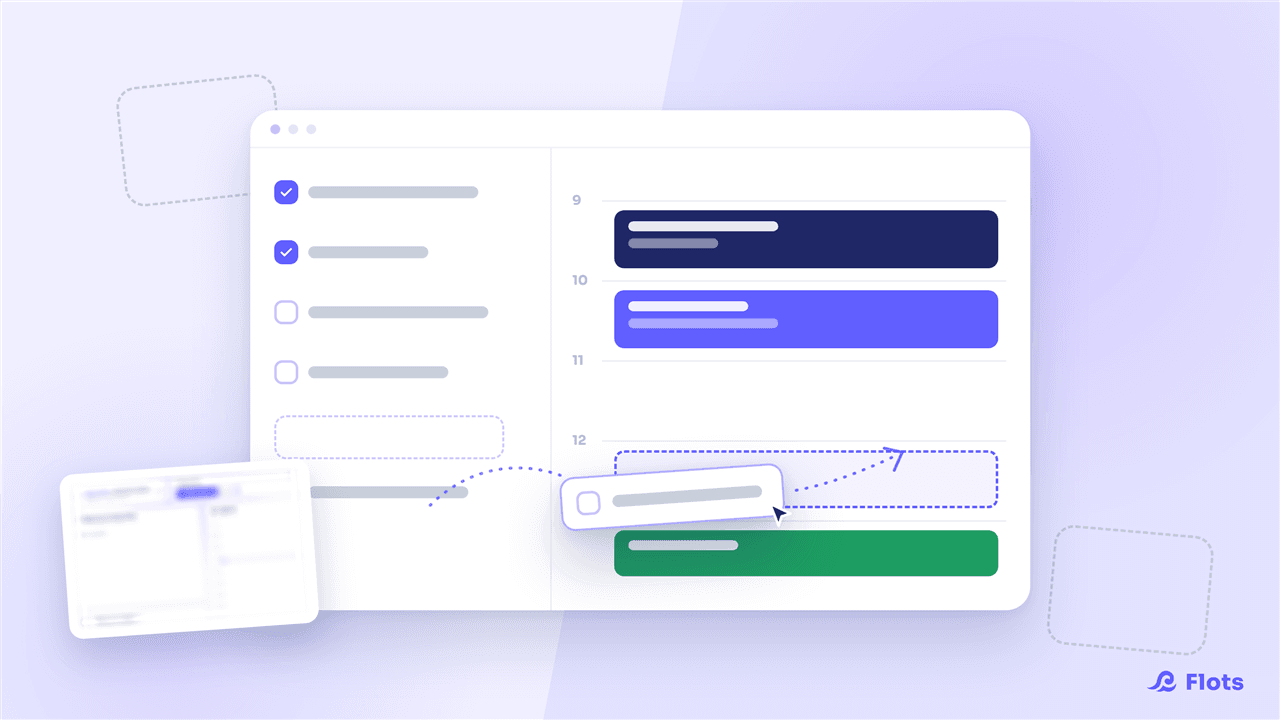
The export creates the matching Google event. After that, time changes travel back automatically: moving the task in Flots moves the event in Google.
So the gesture is needed once per task, not at every change. A team check-in pushed back by an hour, a revision session moved up to the morning: you fix it in Flots, and the calendar the others read follows.
The other Flots calendar settings
The direction of the sync joins the controls already in place: a colour and a visibility of its own for each calendar, and a read-only subscription to an outside calendar feed.
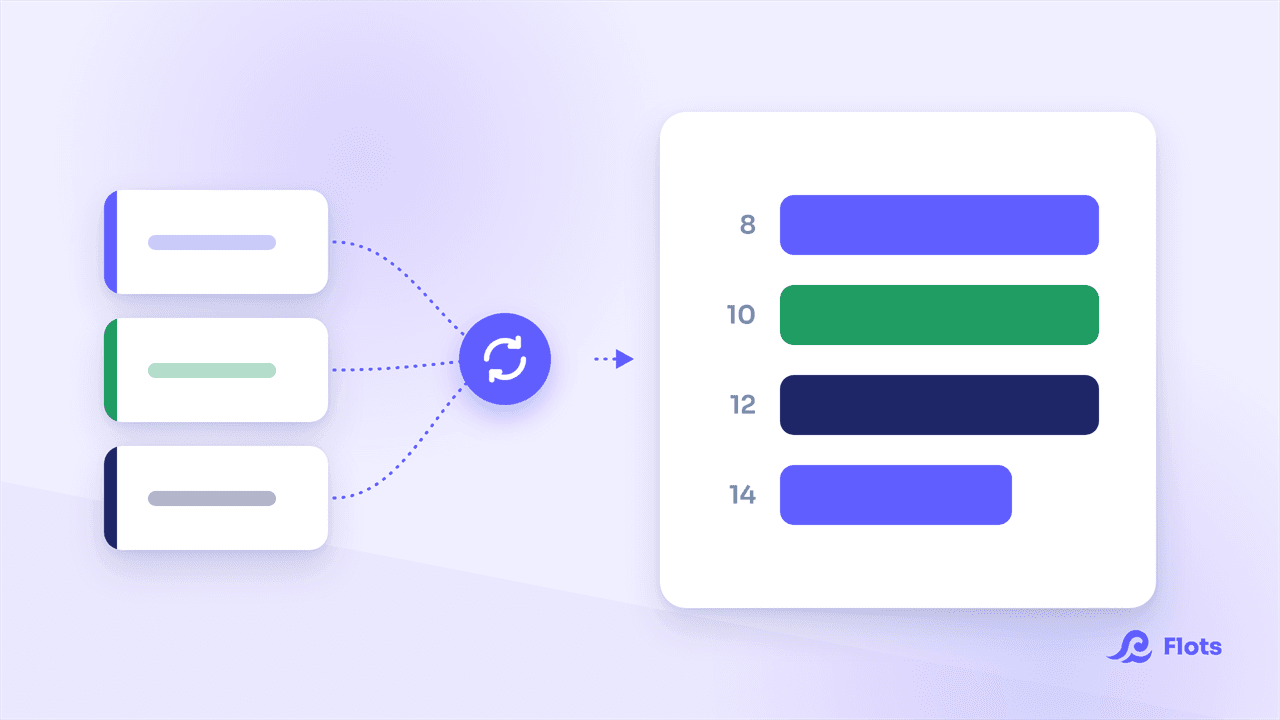
Put end to end, these settings let a personal calendar synced both ways, a work calendar that only receives what you publish, and an outside calendar you merely consult, all live in the same view.
To go further: organizing your calendar in Flots, giving each calendar its own colour and subscribing your Flots calendar to an .ics feed.
Your calendar, in the direction you choose.