The signed quote sits buried in your inbox, found three weeks later. The whiteboard photo from a meeting gets lost somewhere in your camera roll. The PDF a client sent ends up saved who-knows-where. These files belong with the work you already organize in Flots, but they used to live apart from it. Not anymore.
What was missing: your files lived elsewhere
Flots already centralized your tasks, calendar and notes. The file that goes with them, though, stayed elsewhere: an inbox, a shared Drive, your phone's camera roll. Finding it again meant switching apps, trying to remember where you'd filed it, sometimes asking a colleague to send it over again.
That file had no connection to the task, project or client it belonged to. It led its own life while the rest of your organization happened in Flots.
A Documents space for your files and notes
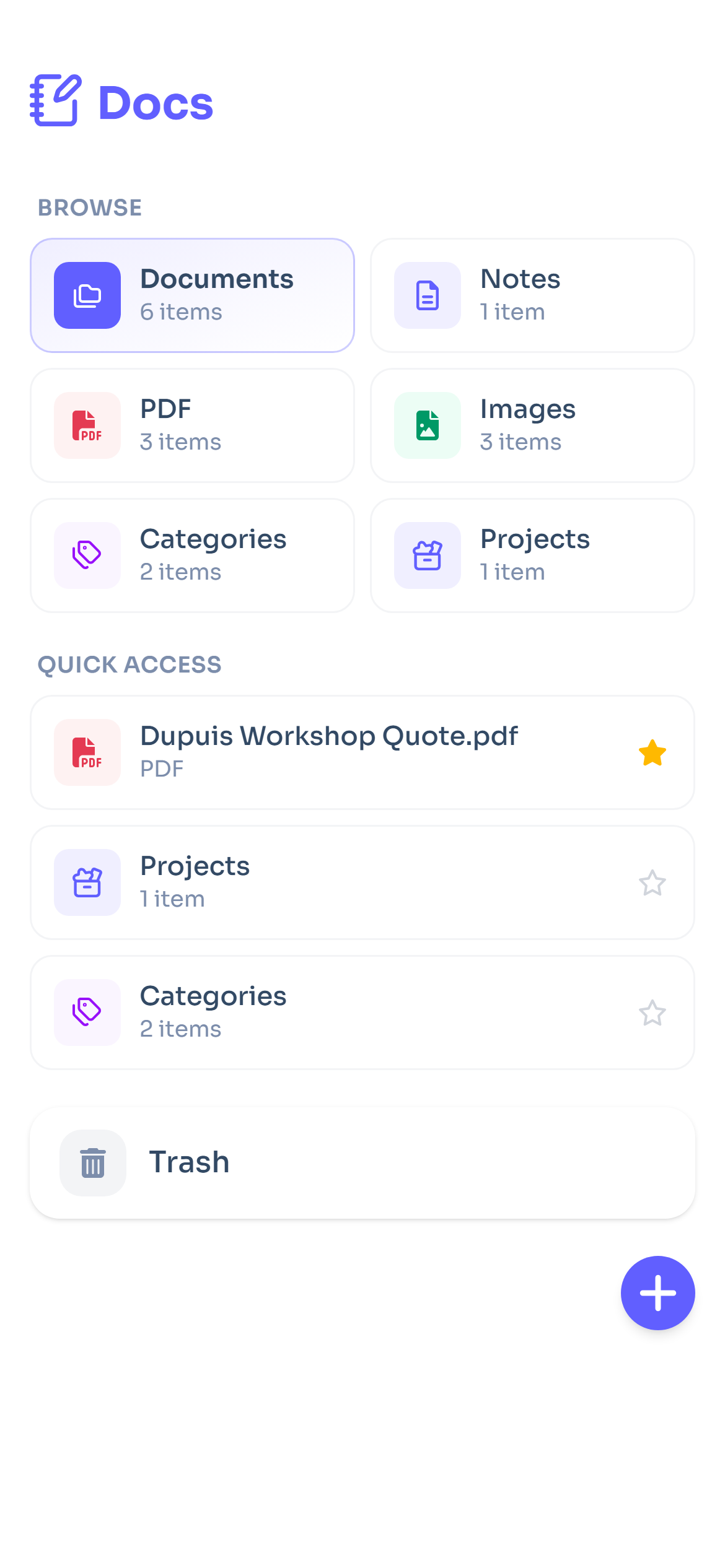
The sidebar now has a new Docs space, with four entries. Notes, Categories and Projects show what you've already created elsewhere in Flots, seen through the files attached to them. Documents is the fourth, and the only one where you can create folders to organize your files however you like.
Inside: folders, favorites for the files you reopen often, Quick access that surfaces the essentials, and Browse by type to filter PDFs or images in one click. Sorting (recent, oldest, name) and multi-select handle the rest once a folder starts filling up.
Images directly in your notes
Another new feature: you can now insert an image into a note, straight from the editor. Whether it's a fresh capture or an image already sitting in Documents, it becomes part of the text and stays with it all the way through: it also shows up in the note's PDF and Word export.
This builds on notes in Markdown, which already gained tables, checkboxes and file export.
On mobile too: photo, gallery, native opening
On mobile, importing a file is instant: take a photo straight from the app, or pick one from your photo library. iPhone's HEIC format gets converted to JPEG automatically, no extra step on your end. Need to check a file? It opens in your phone's native browser.
Your files stay private
What you store in Flots stays yours. Files live in a private, encrypted space, never reachable through a public URL: every preview or download goes through a short-lived link, a few minutes at most, that then expires.
Photos are cleaned up before they're accepted: if they still carry metadata (GPS location, device used, exact date), the upload is rejected. And if a file no longer serves you, the trash keeps it for 30 days before permanent deletion, giving you time to change your mind.

The full guide to the Documents space
Importing, organizing, finding a file: every step in detail in the dedicated guide.
Read the guideBefore / after
| Before | With the Documents space |
|---|---|
| Files scattered across email, Drive and phone | Files centralized in Flots, alongside tasks and notes |
| No connection to the task or project involved | Documents linked to a note, a category or a project |
| Random photo, hard to find again | Photo imported from mobile, filed into a folder |
| File sent with no real privacy guarantee | Private, encrypted storage, short-lived links |
Frequently asked questions
What file formats are accepted?
PDF, JPEG and PNG images, plus HEIC/HEIF photos from iPhone. HEIC is automatically converted to JPEG at upload time.
How much storage do I get?
0.5 GB, for trial and paying Flots accounts.
Can I recover a deleted file?
Yes. It goes through the trash and stays there for 30 days before permanent deletion, whether it's a single file or an entire folder.
Where are my files hosted?
On private, encrypted storage, in Europe. No file has a public URL: access always goes through a short-lived signed link.
Can I share a document with someone?
There's no direct sharing yet. The closest option is going through a shared note or a project, which makes the document accessible to other members.
Voice notes, which would turn into structured notes with the same task extraction as written ones, are currently in development: they aren't available yet, but we're working on it.
Documents closes a gap Flots has had since the start: the file that goes with a note, a category or a project finally has its place alongside the rest. For the full walkthrough, head to the dedicated Documents guide. And if you organize folders with a team, take a look at managing projects in Flots too.