A document never lives on its own: it goes with a note, a project, a client folder. It used to sit apart, in a Drive or an inbox, cut off from the rest of your organization. With the Documents space in Flots, it's finally filed in the same place. Here's how to use it, from import to organizing.
Import a file in two clicks
On desktop, drag and drop a file anywhere in the Documents space, or paste it straight from your clipboard: the quote a client just emailed you joins Flots in seconds. On mobile, take a photo from the app or pick one from your photo library. The file lands directly in the folder you're viewing, ready to be filed. Up to 10 files per batch: past that, a message lets you know the rest were skipped.
Flots accepts PDF, JPEG and PNG images, plus HEIC/HEIF photos from iPhone, automatically converted to JPEG at upload time.
Record a voice note
On iPhone and Android, Docs also offers direct recording: a dedicated button opens the recorder, with pause and resume if you get interrupted. Each voice note can run up to 2 hours, and gets filed into a project or category right as you record it, exactly like an imported file. It's then accessible from its own "Voice notes" tab, and plays anywhere, including from a computer.
It's a fast way to capture a recap or an idea out loud without reaching for the keyboard. The full picture is in the dedicated article: voice notes.
Organize with no effort: folders, favorites and quick access
In the sidebar, Notes, Categories and Projects are automatic views: they show what already exists elsewhere in Flots, seen through the files attached to it. Documents is the only section where you actually organize things, with your own folders.
Once imported, your files get filed however you like. Create folders, move a file by drag and drop or through a dedicated dialog, and mark the ones you reopen often as favorites.
Two shortcuts save you from digging around: Quick access surfaces the essentials, and Browse by type filters PDFs, images or notes in one click. In multi-select, move or delete several files at once, handy for a big cleanup in one go.
Finding and reading a document
To get your hands back on a file, Quick access and Recently accessed cover most of what you need day to day. Browse by type and sorting (recent, oldest, name) handle the rest in a busier folder.
Clicking a PDF opens its preview right inside Flots: every page in a row, zoom, and download in one move if you need it elsewhere. An image opens full-screen the same way, ready to be zoomed in on. No need to download a file just to check what's in it.
Linking your documents to your projects and notes
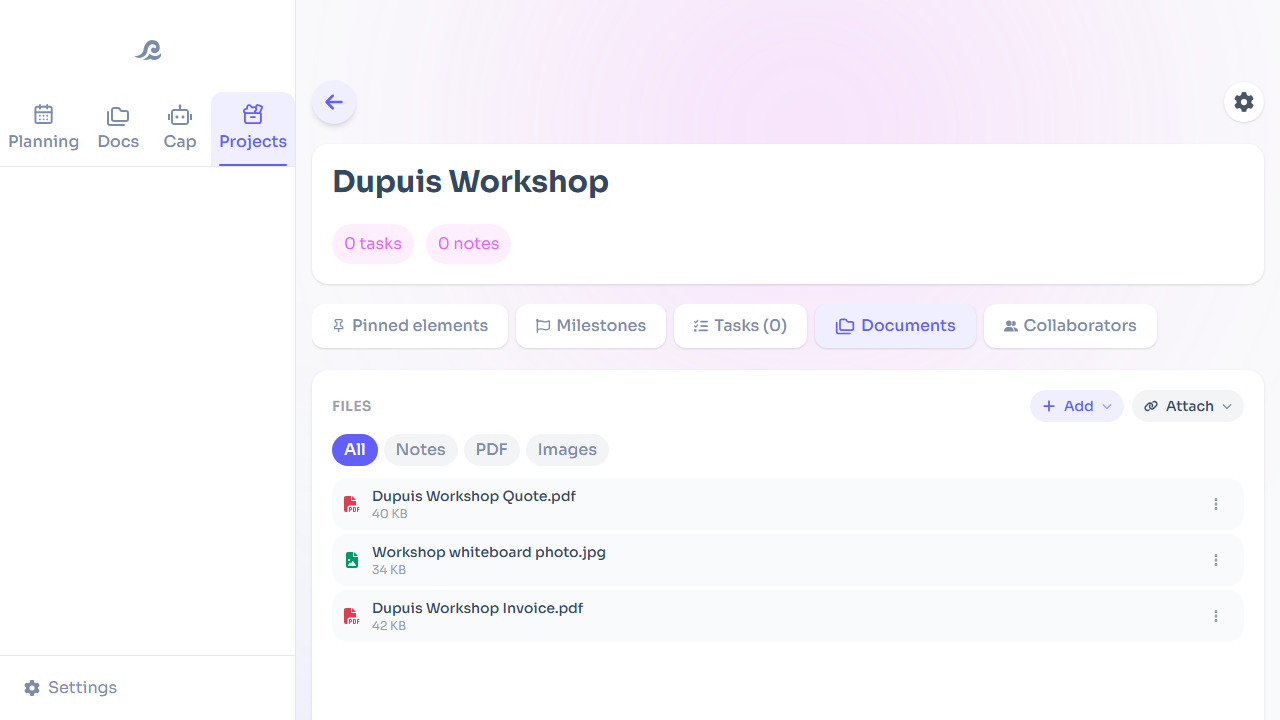
A document makes full sense once it's linked to the right context. From a project, the Documents tab gathers the files that belong to it, pinned or filed in a folder specific to that project: a client's contract and invoices stay within reach, right next to that project's tasks and notes. A category works the same way, grouping files by topic instead of by folder.
And from the note editor, you can insert an image already stored in Documents directly, without going back to your device. It follows the note all the way to PDF or Word export.
Trash and storage space
Deleting a file or a folder (with everything inside it) doesn't erase it right away: it goes through the trash, where it stays for 30 days before permanent deletion, restorable at any point until then. Nothing is lost on the spot.
An indicator at the bottom of the sidebar shows the space used, out of the 0.5 GB included for trial and paying accounts. If you're getting close, emptying the trash frees up the space held by whatever was already sitting there.
Your files also live in a private, encrypted space, hosted in Europe: none of them has a public URL, and every preview or download goes through a short-lived link that then expires. Nothing to configure: it's the default security for everything you store in Flots.
A document filed in the right place turns up right away, no digging through an entire Drive. For the full picture of the feature, head to the announcement.
Import your first document into Flots.