The first time you discover categories, you want to create fifteen of them. One per client, one per room in the house, one for "urgent," one for "someday maybe." Three weeks later, half of them are empty, the other half overlap, and you no longer know where to put the task you just wrote down.
A good category system barely gets noticed. It answers a single question, it has few boxes, and filing a task takes a second. Here's how to build one in Flots, with examples ready to copy.
What a category does in Flots
In Flots, every task can get one or more categories: personal, work, a client, a subject. The task's field then shows how many are selected. Nothing is mandatory: a title is enough to create the task, and categories get added when you have a use for them.
Once set, a category does three things:
- filter your list so you only see one subject at a time;
- color your tasks in the calendar: each one keeps its category's color, which sets them apart from events imported from an external calendar;
- connect the rest of your content, since notes, documents and whiteboards are sorted by category too.
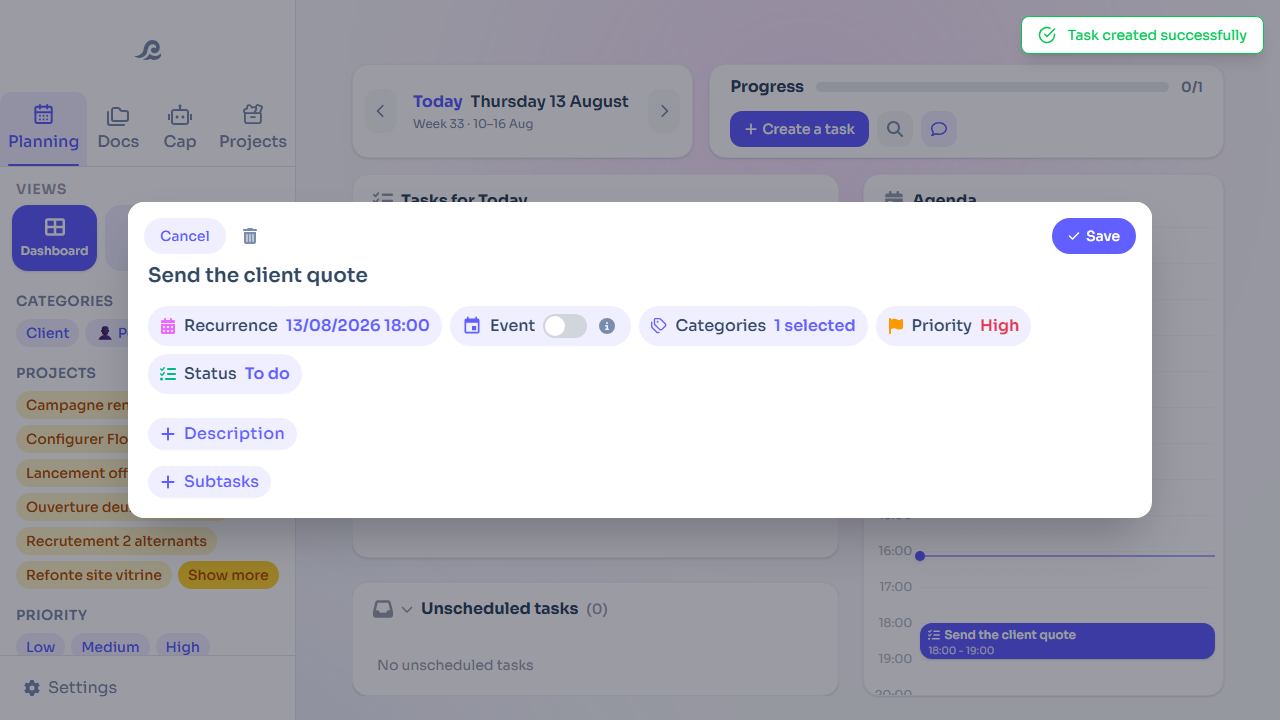
That last point is what makes it worth thinking your system through: the same category files a task, the note that goes with it and the matching PDF.
How many categories should you create?
Fewer than you think. Between four and six, most people find their way around.
The test is simple. When filing a task, if you hesitate for more than two seconds, there's one category too many or two that overlap. A category earns its place when you're going to filter on it. If you never open it on its own, it doesn't need to exist.
Keep one boundary in mind too: a category isn't a project. For a subject that lasts several weeks and brings tasks, notes and milestones together (a thesis, a move, a major client), a project takes over. A category, on the other hand, groups tasks of the same kind that keep coming back.
Sort by context, area of life or type of effort
There are three main ways to split up your tasks. They all work, as long as you pick only one as your main axis. A task can carry several categories, but mixing "Home," "Calls" and "Quick" in the same list makes you answer three questions for every task you write down.
| Axis | The question it answers | Example categories |
|---|---|---|
| Area of life | "Which part of my life is this about?" | Work, personal, family, school |
| Context | "Where am I, and with what tool?" | Computer, phone, out and about, office |
| Type of effort | "How much energy do I have left?" | Deep focus, quick, admin, conversations |
Area of life is the most intuitive. It works when several worlds share the same week: work and family, school and a company.
Context comes from David Allen's GTD method, which recommends sorting next actions by the place or tool they require, because you can never do everything everywhere (the explanation on the official GTD website). It's useful if you move around a lot. Less so if you spend the whole day in front of the same screen: a "Computer" category that holds everything no longer sorts anything.
Type of effort reflects the state you're in. A "Quick" category for five-minute tasks, a "Deep focus" one for those that need a quiet block of time. It's also the idea behind batching: grouping tasks of the same kind to handle them in one go.
Three category systems ready to copy
Student
One category per subject or module, plus one for the job or internship. It's the most natural split: you study subject by subject, and you filter the same way. The thesis or the group project deserves a project of its own.
Freelancer
Clients are better off in projects, one per client, with their notes and documents. Categories then sort the work by type, across all clients: production, prospecting, admin, personal. On Friday, a filter on "Admin" pulls up invoices and follow-ups in one go.
Parent
Kids, home, paperwork, work. Four categories are enough to separate what belongs to the household from what belongs to the office, without keeping two tools going. One category per child only becomes useful when each of them has a lot of activities to keep track of.
Filter by category to see a single subject
A category really comes into its own when you filter. You filter on "School" and the client file disappears from view for an evening of studying. You filter on "Quick" and you clear the queue of small tasks before a meeting.
You focus on a single subject, but everything stays in the same list: nothing gets lost between two tools.
Clean up your categories
A category system ages. A contract ends, a semester wraps up, a category created on a whim never got used. Once a month, or during your weekly review, ask yourself three questions:
- Have I filtered on this category in the last few weeks?
- Does it still hold tasks to do?
- Do I regularly hesitate between it and another one?
Two "no" answers and one "yes," and the category can go. Move its last tasks to a neighboring category, then delete it. Deleting only removes the label from the items that carried it: the tasks, notes and documents stay where they are. Two categories you keep mixing up get merged the same way: keep the one with the clearest name.
The opposite happens too. If a category overflows to the point where filtering on it tells you nothing anymore, split it in two. That's the only case where adding one makes things simpler.
Four well-chosen categories beat fifteen you never open. Pick your axis, create the bare minimum, and let actual use tell you what's missing.
Sort your tasks into a few categories that hold up.
One filter to see a single subject, and the same label on your notes and documents.