Notes in one app, tasks in another, appointments in a separate calendar. Many freelancers and small teams spend their days chasing their own organization. Flots starts from a simple idea: bring it all together in one place, with an assistant by your side. This guide introduces the app and shows you where to start.
What is Flots?
Flots is a simple, centralized organization app. It brings your tasks, calendar, notes and projects together in a single tool, on both computer and mobile (iOS and Android).
We often sum it up with an image: a pocket secretary. A companion designed for people with a packed schedule, freelancers or small teams, who want to spend less time organizing and more time on their actual work.
Centralized organization, all in one place
At the heart of Flots is centralization. Instead of juggling several apps to stay on top of things, you access all your tools from a single place, on every platform you use.
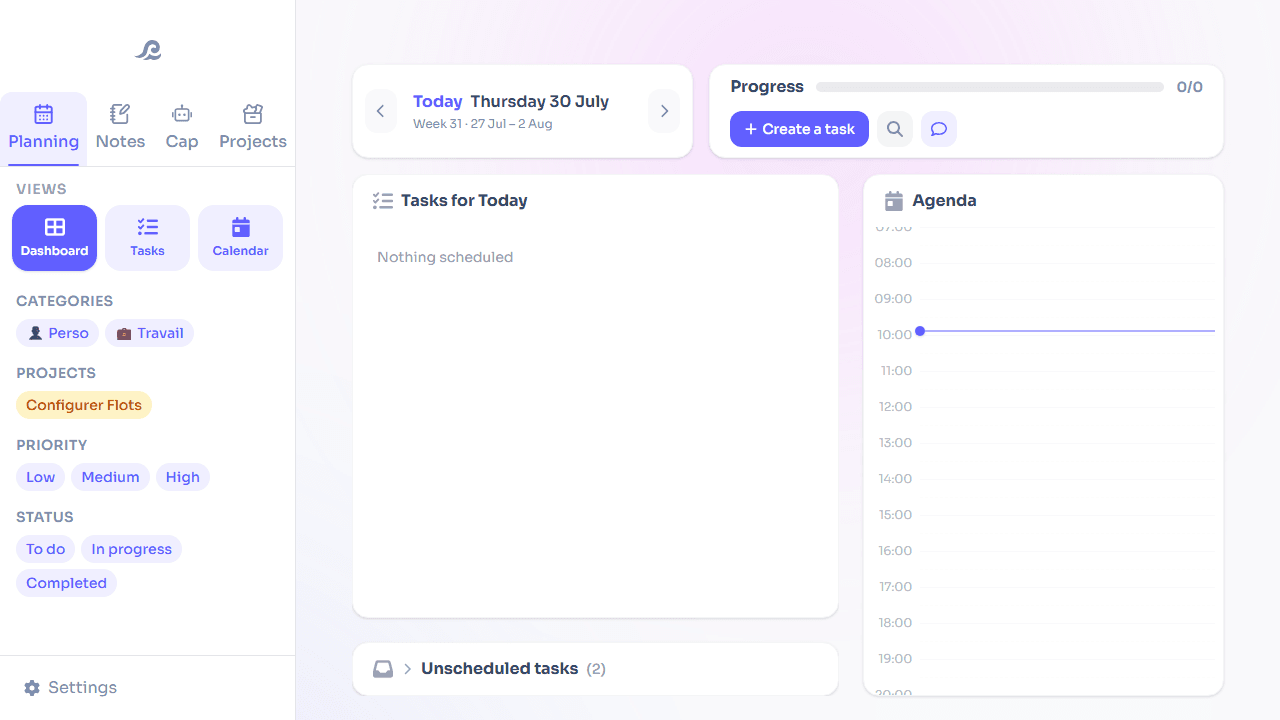
The Planning dashboard shows it well: at a glance, you see today's tasks, your calendar, and how your day is progressing on the same screen.
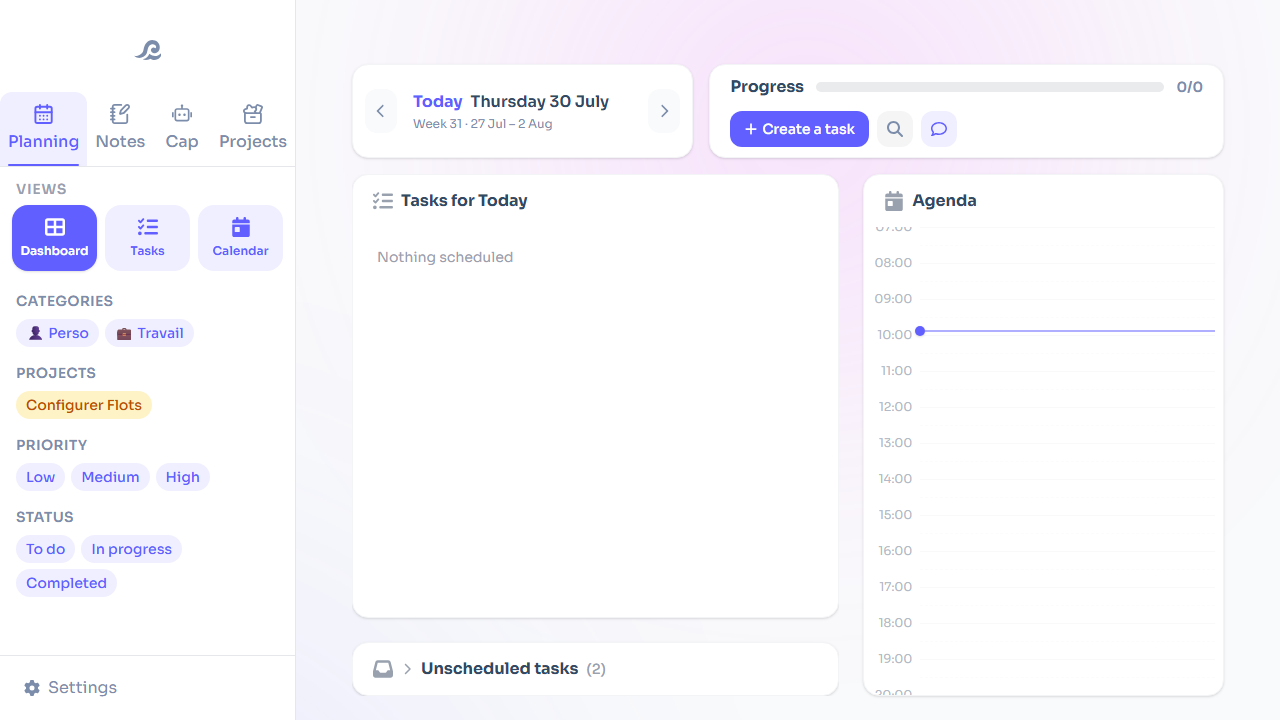
The benefit is immediate. You stop hunting for where you jotted down some piece of information or filed away a task. Your schedule and your notes live together, and inform each other.
A tour of the tools
Flots is built around five tools you already know, plus an assistant. Each one has its own dedicated guide to go further:
- Tasks: jot down what needs doing in two clicks, then add detail if needed (categories, subtasks, recurrence, reminders). → The tasks guide
- Calendar: a familiar calendar connected to Google Calendar, for appointments and work blocks. → The calendar guide
- Notes: capture your ideas, format them in Markdown, sort them by category. → The notes guide
- Documents: store your PDF files and images, linked to your notes and projects. → The documents guide
- Projects: a dedicated space per subject, bringing together tasks, notes, documents and milestones, solo or as a team. → The projects guide
- Cap, the assistant: your pocket secretary, who helps you plan and keeps the essentials in view. → The Cap assistant guide
Everything is designed to work together. A note can feed into a task, a task finds its place on the calendar, and it all gets filed under a project.
Where to start?
Getting up to speed takes minutes, not hours. Expect about fifteen minutes to get a feel for what the tool can do. To get started on the right foot, work through it in this order:
- Write down your first tasks. Empty your head of everything you need to do, without worrying about organization yet.
- Connect your calendar. Link Google Calendar to bring in your existing appointments.
- Plan your day. Sort your tasks and drag them onto your time slots, in just a few minutes.
- Create a project for something ongoing, a client or a case, and gather its tasks and notes there.
None of this is mandatory. You can perfectly well start with a simple task list and build from there as your needs become clearer.
How to use it day to day
Once it's set up, Flots slots into your habits instead of imposing new ones. The winning reflex comes down to a few gestures:
- Capture quickly. An idea, a task, a piece of information: two clicks and you're back to work.
- Frame your day in the morning, by placing your tasks on the calendar.
- File by project whatever relates to a specific subject, to keep track of it over time.
- Let Cap help you with planning and reminders for the essentials, without the clutter.
The idea isn't to add yet another tool to manage. It's to replace several with one, lighter and more coherent.
Essentials first
One principle sums up Flots: simple by default, rich when needed. Keep it simple, and the app stays simple; want more detail, and it's there too. It's the tool that adapts to how you work, not the other way around.
One place for your tasks, your calendar, your notes and your projects, with an assistant by your side: that's Flots in one sentence. To discover it, create your first space and jot down what's already on your mind. If you'd rather start with a field report, an AI engineer describes his daily use of Flots; and to place Cap in context, we've written about what an AI assistant actually changes about a working day.
Ready to bring your organization together in one place?
Tasks, calendar, notes and projects in a single tool, with Cap by your side.