A whiteboard is there to let you think with your hands. You drop in blocks, pull arrows between them, erase, start again. What writing pins down too early, a drawing leaves loose for as long as it needs to be.
Here is what the whiteboards in Flots let you do, and how to slot them into the organization you already have.
Creating a whiteboard in Flots
A board is created from your documents, in whichever folder you choose. It appears in the tree next to your files and your notes.
Give it a title straight away: by default it is called "Untitled board", and that is the name you will be looking for three weeks from now.
Saving is automatic. An indicator tells you where you stand while you work: saved, saving, or unsaved changes. So you know what is left to do before closing it.
Drawing: pen, shapes, arrows and text
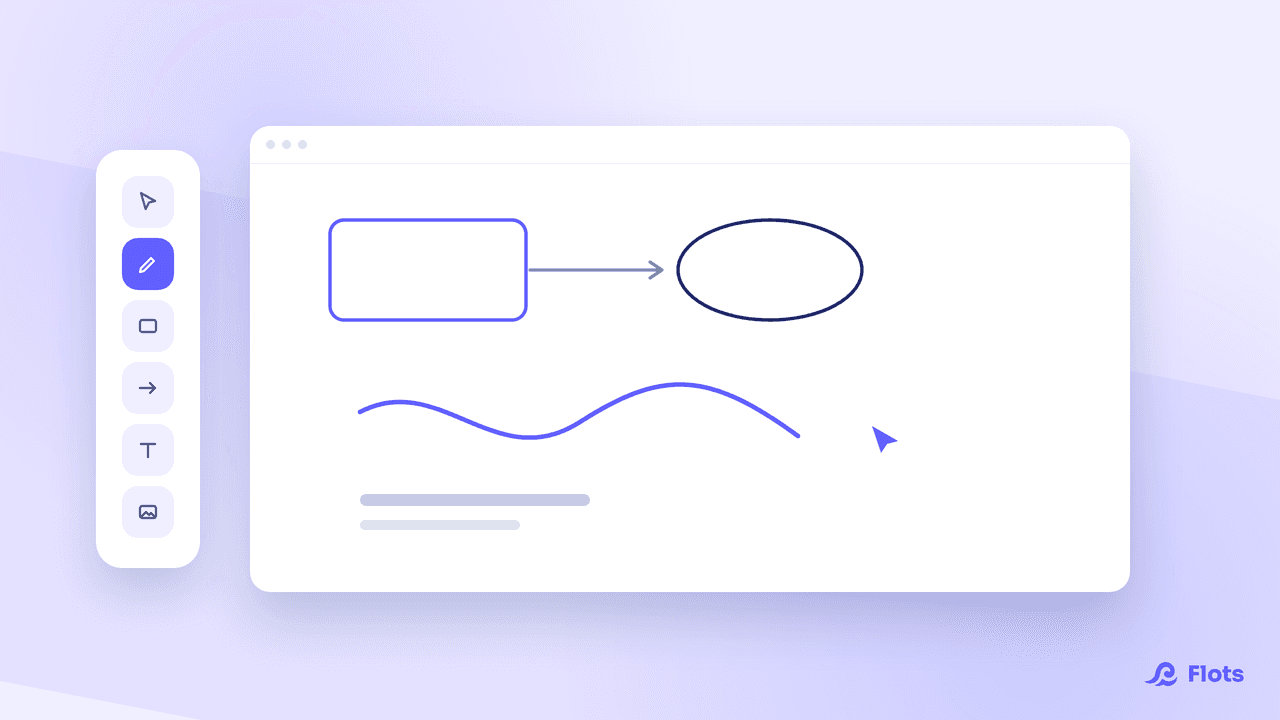
The toolbar comes down to a handful of buttons, and they do what you expect from a whiteboard.
- Pen to draw freehand, as on a real board.
- Shapes: rectangle, ellipse, diamond — enough to lay out a step, an actor, a decision.
- Arrows and lines to connect blocks to each other.
- Text, image and eraser for the rest: naming what you have just drawn, dropping in a screenshot or an existing plan, wiping out what is no longer useful.
Line style and thickness can be adjusted, and so can the canvas background. You can undo, redo, duplicate or delete a selection, and you will do it ten times in a row while reshuffling the same diagram.
All of this works from mobile too. A large screen is still more comfortable for a dense diagram, but nothing stops you from annotating a board on the train.
Attaching a board to a project and a category
A board attaches to a project: it then appears in that project, with the rest of its content. It also carries categories, like your notes and your documents, which makes it surface in your cross-cutting views.
Attach it when you create it, not "later on".

Attach it before you draw
Thirty seconds up front save you from digging through your whole tree a month later.
Working on the same board together
A board shared in a project can be written on by several people live. Other people's strokes appear while you draw.
Contributions combine instead of overwriting each other, so two people moving two different blocks do not step on each other. Permissions follow those of the project: owner, editor, reader. Nobody has an extra setting to configure.
It is the same foundation as collaborative note editing, applied to the canvas.
Exporting a whiteboard as an image
The canvas options let you export the board into your documents. You get an image, filed with your other files.
Enough to attach the diagram to a report, pass it on to someone outside, or freeze a version before carrying on with the original.
The images you drop in stay documents
An image placed on a board becomes an ordinary document in your space. So it counts towards your quota, and it follows the board's attachments.
Concretely: the screenshot you paste onto the board of the Redesign project also appears in that project's documents. You do not lose it inside a drawing.
When to open a whiteboard
Framing a project before breaking it down. Lay out the main steps as blocks, connect them, move them around until the sequence holds. Only then turn them into tasks in the project.
Explaining how something works. An architecture, an approval flow, a customer journey. The diagram lives next to the project it documents, not in a third-party tool.
Improvising a meeting. Splitting up the work, a room plan, a decision made together. Everyone draws, the trace remains, and it is already filed in the right place.
Whiteboards round out the other content in your space: see managing your documents for the tree that hosts them, taking notes in Flots for writing, and Whiteboards: draw inside Flots for the full announcement.
Your diagrams, filed with your projects.