You have organized your tasks in Flots, but your team looks at the company calendar, and your phone shows the system one. The result: your work slots are invisible to everyone, including you when you look at your phone.
Flots publishes an .ics link that settles this.
Exporting your tasks rather than importing a calendar
Flots already knows how to import an outside calendar: a university timetable, a team schedule, a club's fixtures. That is the subject of ICS calendar: subscribe your Flots agenda.
This guide covers the other direction. This time Flots is the one publishing a feed, and your other calendar is the one subscribing to it.
| Direction | What happens |
|---|---|
| Import into Flots | An outside calendar appears in your Flots calendar |
| Export from Flots | Your scheduled tasks appear in an outside calendar |
Both can run at the same time, and on different calendars.
Getting the link
In Settings, Calendar section, open the Export tab. The ".ics link (Google Calendar, Outlook Calendar, ...)" block shows your personal address, which starts with https:// and ends with .ics. The Copy button puts it on your clipboard.
Copy it as it is: it is an address your calendar will subscribe to. If you download the calendar instead of subscribing to it, you get a frozen snapshot that will never update.
Subscribing from the usual calendars
Each app has its own name for it, but the idea stays the same: you paste the address and the calendar subscribes.
Google Calendar: use a computer, since the mobile app cannot subscribe to a calendar. On the left, next to "Other calendars", click "Add other calendars", then "From URL". Paste the link and confirm with "Add calendar".
Outlook (Outlook.com or Outlook on the web): "Add calendar", then "Subscribe from web".
On iPhone: in the Calendar app, tap Calendars, then "Add Calendar" and "Add Subscription Calendar".
On Mac: in the Calendar app, File menu, "New Calendar Subscription".

A private link, not a public page
This link gives access to your tasks without signing in. Treat it like a password: don't paste it into a shared document. If it has been passed around, the refresh icon next to the title generates a new link, and the old one stops working at once.
What comes through, and what does not
Only dated tasks belong in a calendar, since a calendar shows moments in time. A task with no date has nothing to do there, and will not show up.
- A task with a start time becomes a slot. With no end time, the slot lasts one hour.
- A dated task with no time shows up as an all-day event.
- A recurring task shows up with its recurrence.
- A completed task stays visible for seven days, marked ✅, then drops out. A task in progress is marked 🔄.
- Sub-tasks and their progress are carried into the event's title and description.
The feed covers the tasks in your personal space. Tasks filed in an organization's projects are not included.
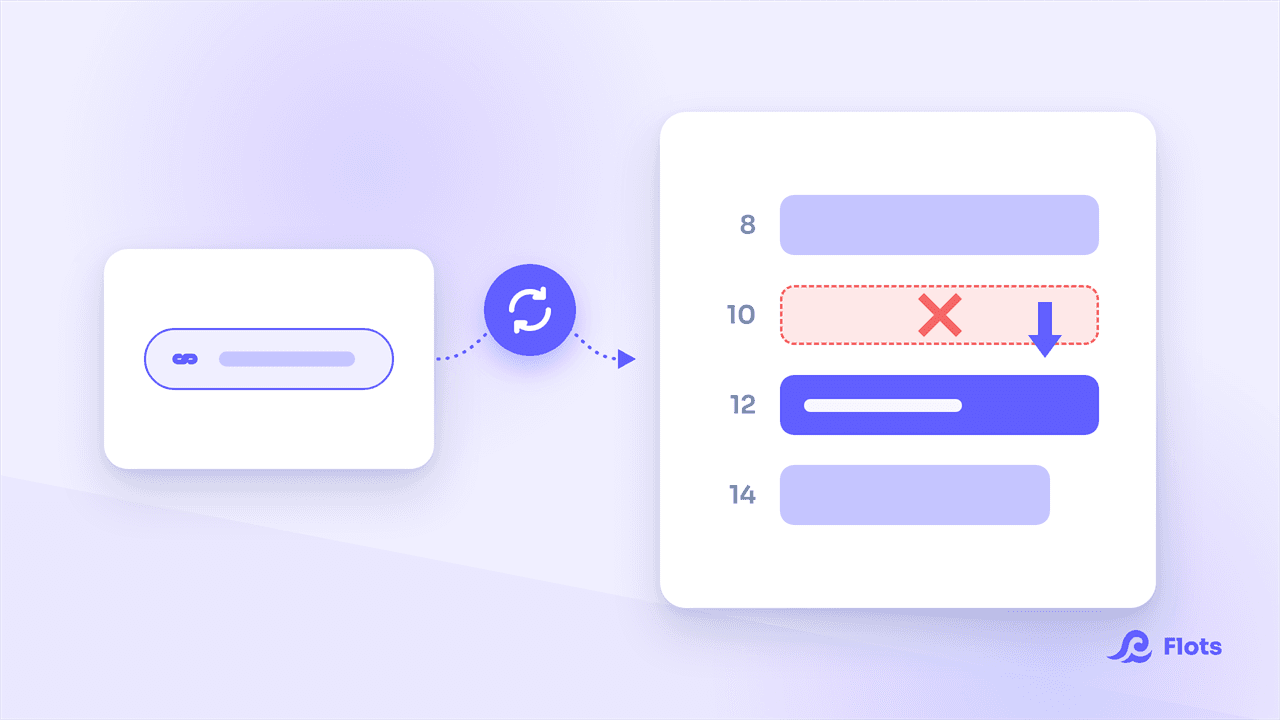
And the subscription is read-only. The remote calendar displays, it does not steer. Moving a slot from Google Calendar will change nothing in Flots, and your change will disappear at the next refresh of the feed.
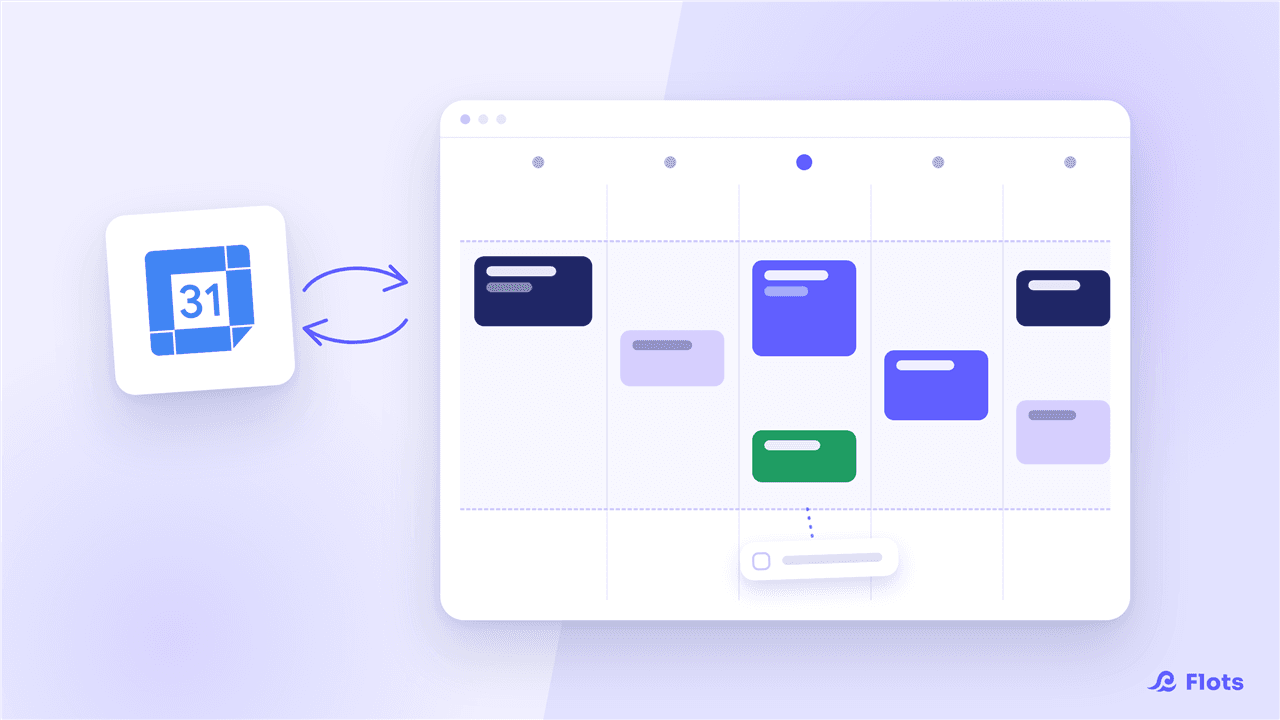
Every .ics subscription works this way, whatever tool publishes the feed. If Google Calendar is your main calendar, the Flots Google connection goes further: it turns your tasks into real Google events, and moving the task in Flots moves the event. It is described in Google Calendar: one-way sync.
The refresh delay
The subscribing app decides when to re-read the feed, not Flots.
Think in hours. Microsoft says subscribed calendars in Outlook update roughly every three to six hours, and that a change can take more than 24 hours to show up (Microsoft Support). A task you move right now will not budge straight away in your other calendar.
This feed gives other people visibility. To run your day minute by minute, stay in Flots: that is the job of the planning view.
What it is good for in practice
Making your workload visible to the team. Your work slots appear in the calendar your colleagues check before suggesting a meeting.
Finding your tasks on a company phone where you cannot install the application of your choice.
Checking that the day holds together. Seeing your tasks next to your meetings, on the same screen, makes the impossible days show up before they arrive.
For the rest of the calendar settings, read organizing your calendar in Flots and several calendars, one colour each.
Your tasks, visible where people look for you.