Your timetable moves. A seminar changes room the day before, a lecture shifts by an hour, a class is cancelled. If you copied your week out by hand in September, or imported a file once and for all, you'll find out in front of a locked door.
ADE can publish your timetable in a form Flots syncs on its own. The setup takes five minutes, once for the year.
Importing an .ics file or subscribing to the ADE URL
ADE offers two outputs, and they don't do the same job.
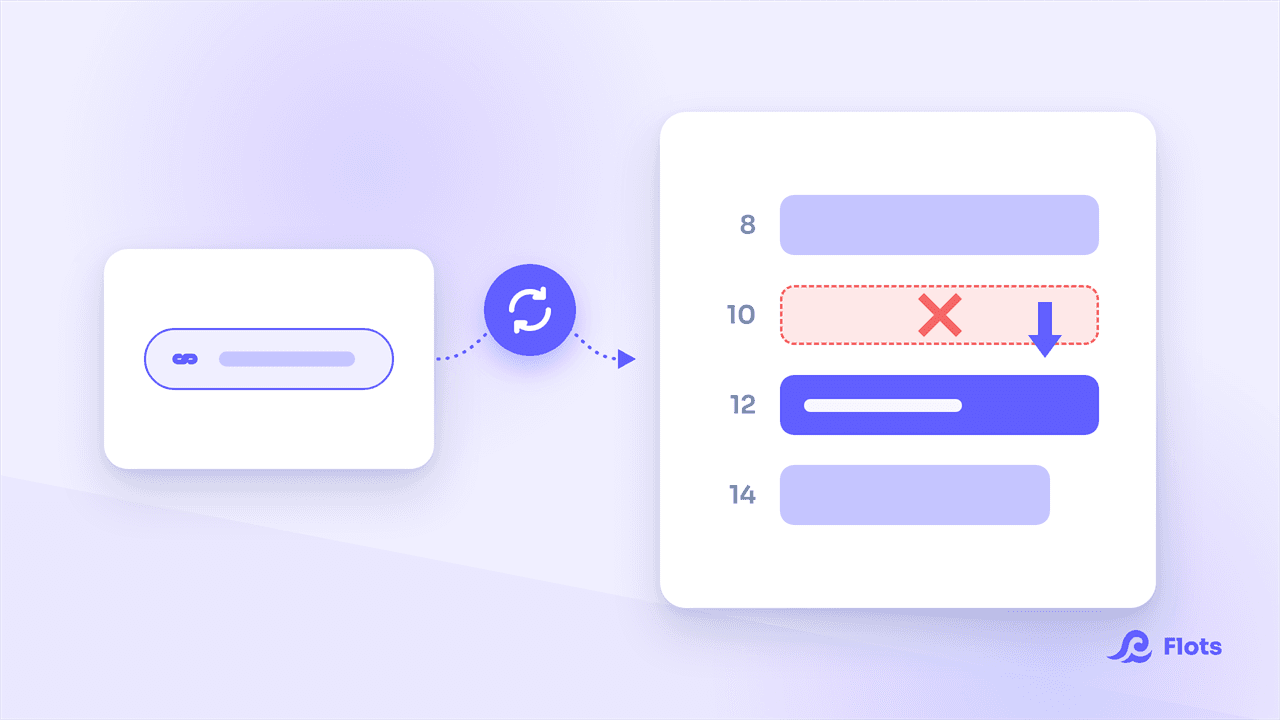
Downloading an .ics file and importing it photographs your timetable at the moment you click. The calendar you get never moves again, and every new import stacks its events on top of the previous ones.
Universities document this plainly. The Math-Info department at Université Paris Cité describes file import as a static calendar, a snapshot taken at the moment of importing, and sets it explicitly against subscribing by URL; the IT department at Université de La Réunion offers its students the same choice.
The other output is a web address. You download nothing, you hand the address to your calendar, which checks it regularly. The room change decided on Tuesday evening reaches you without you doing a thing.
Getting your sync URL out of ADE
Labels vary a little between institutions, but the sequence is the same everywhere:
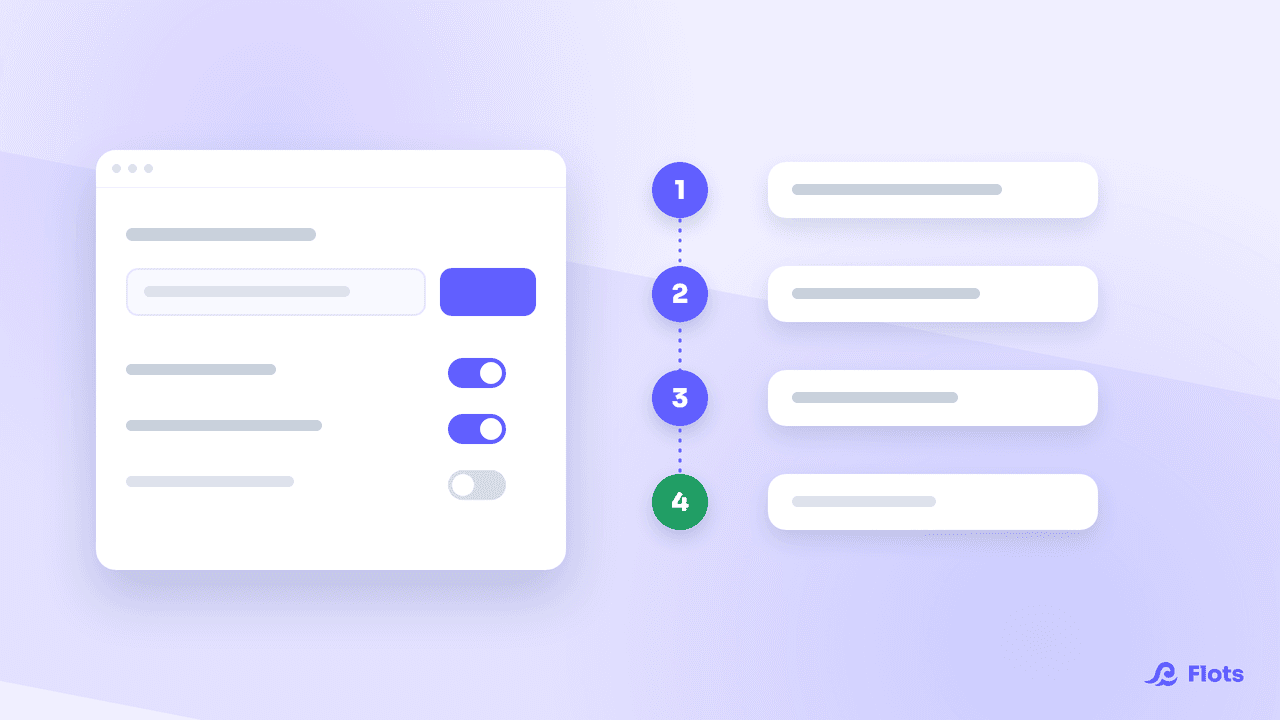
- Open your ADE timetable and select the resources that concern you (your group, your year, your electives).
- Click Export Agenda.
- Fill in the date range, with a start and an end date.
- Click Generate URL. ADE shows an address, often alongside a QR code.
Copy that address. It's the only thing you need.
The URL only covers the range you asked for in step 3. Ask for one running from the first day of classes to the end of the academic year, or your calendar will empty itself one morning in February, with no error and no warning.
Adding the ADE feed to Flots
In Flots, open Settings, then the Calendar section, then the Connections tab. You'll find the ICS calendar link block there, next to the Google Calendar integration.
Two fields to fill in:
- Calendar feed URL: the address you copied from ADE.
- Name: whatever you want to read in your settings, for instance "Year 3 timetable".
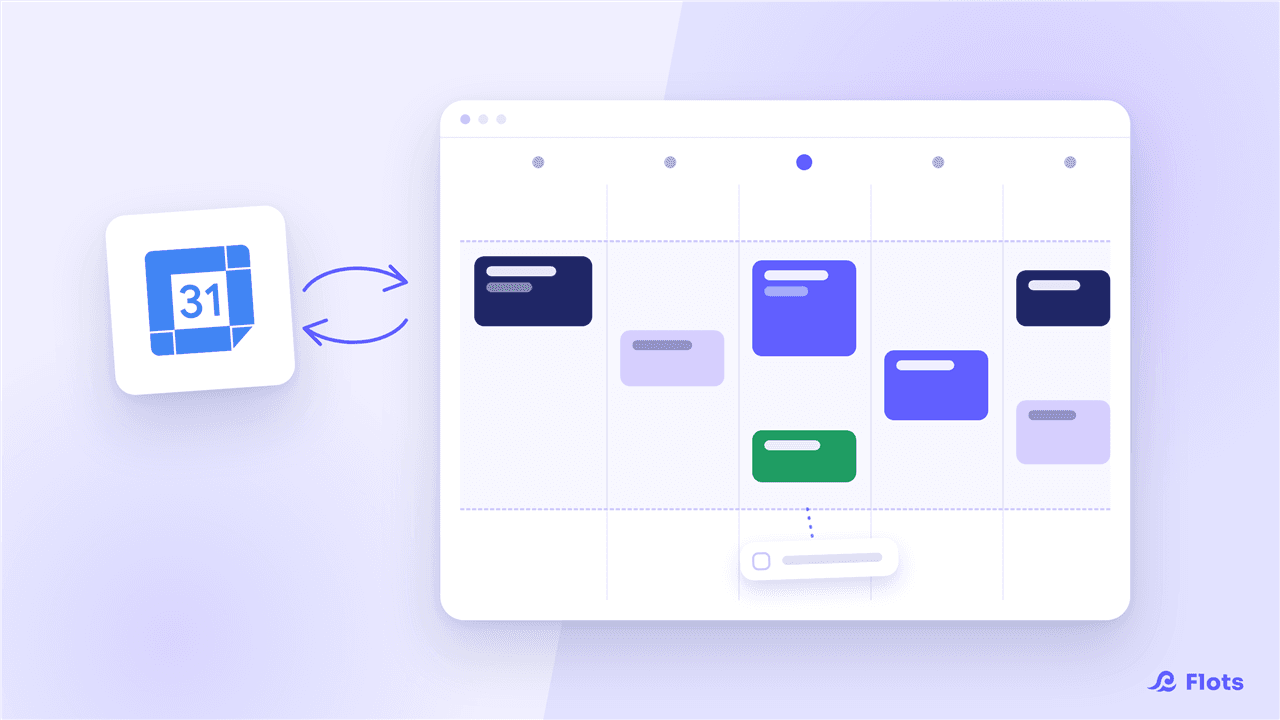
Confirm with Add calendar feed. The first import starts immediately and your classes appear in the calendar as dated tasks, with their time and their room when ADE fills it in. They show up in the same views as the rest of your Flots calendar.
If Flots rejects your ADE URL
Three causes cover almost every rejection.
The address starts with webcal://. Flots only accepts http and https. The link points at exactly the same file: replace webcal:// with https:// at the start of the address and try again. Google Calendar and Outlook often hand out their links in that form.
The address isn't publicly reachable. Flots fetches the file from its own servers, without your credentials. If the URL requires a connection to your institution's intranet, it won't work. That's why you need the sync URL generated by ADE, not the address of the page where you read your timetable.
The feed is too big or too slow. A feed has to weigh less than 5 MB and answer in under fifteen seconds. An export covering ten years of classes for a whole faculty can blow past the limit: narrow the resource selection or the date range.
Automatic syncing, every 20 minutes
Once the feed is added, Flots resyncs it on its own. The default interval is twenty minutes, so a room changed at the end of the day is up to date in your calendar before you wake up.
Your settings show the state of the feed at all times: Synced, Sync failed or Not synced yet, the date of the last successful sync and the number of imported tasks. The Sync now button forces an immediate sync when you know a change has just landed.
Syncing only runs one way: an ICS feed is imported read-only. You can move or rename an imported task inside Flots, nothing will go back to ADE, and the next sync will treat the university's version as the reference.
Telling your classes apart from the rest of your day
Three calendars in one view become unreadable if everything shows up in the same color. Every connected calendar has its own, set from the same Connections tab under Calendar color, and a Show this calendar switch lets you hide your classes while you plan a weekend.
Your classes and your revision then live in the same day, and you can see the free slot on Thursday afternoon instead of guessing at it.

Organising your studies beyond the timetable
Classes, coursework and revision in one place, once the calendar is set up.
Read the student guideUnsubscribing without losing your semester
A feed is removed from the same screen. Flots then asks what becomes of the classes already imported: Keep existing tasks leaves them in your calendar as ordinary tasks, Delete imported tasks clears them out. So you keep a record of your semester even after cutting the link with ADE.
Five minutes in September, and your timetable keeps itself up to date until June, room changes included.
Your classes and your revision in the same calendar.