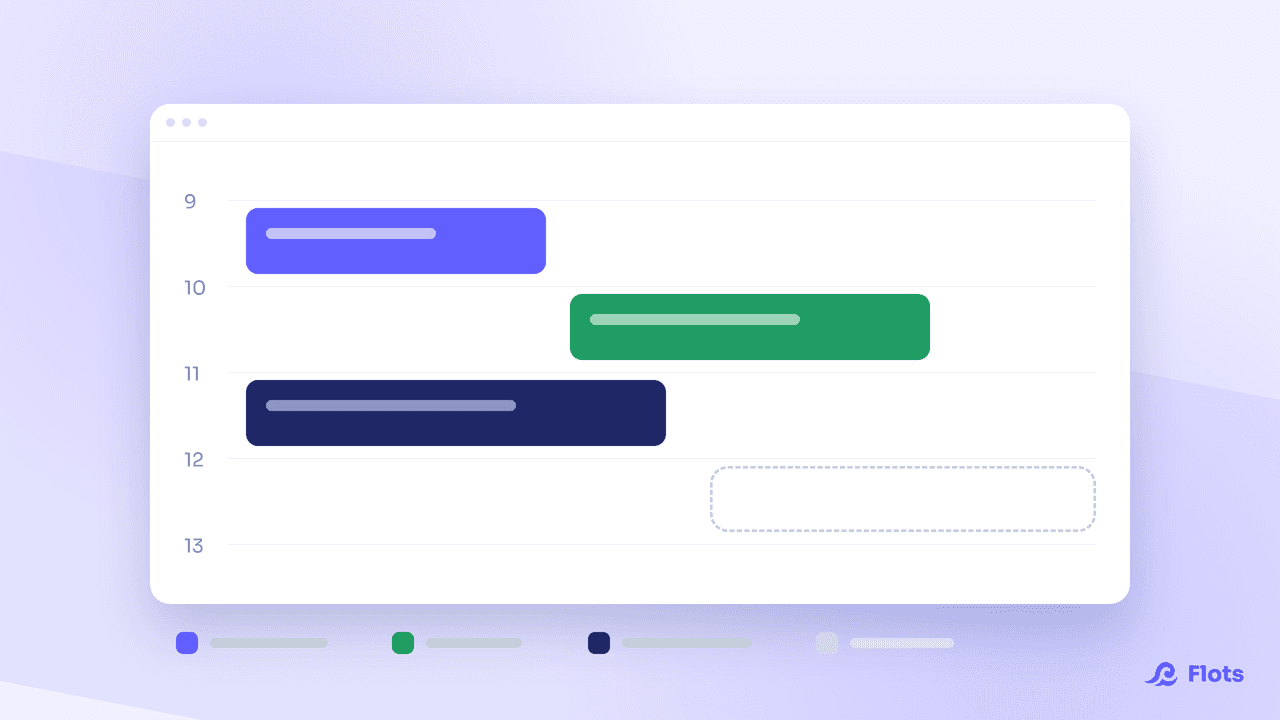
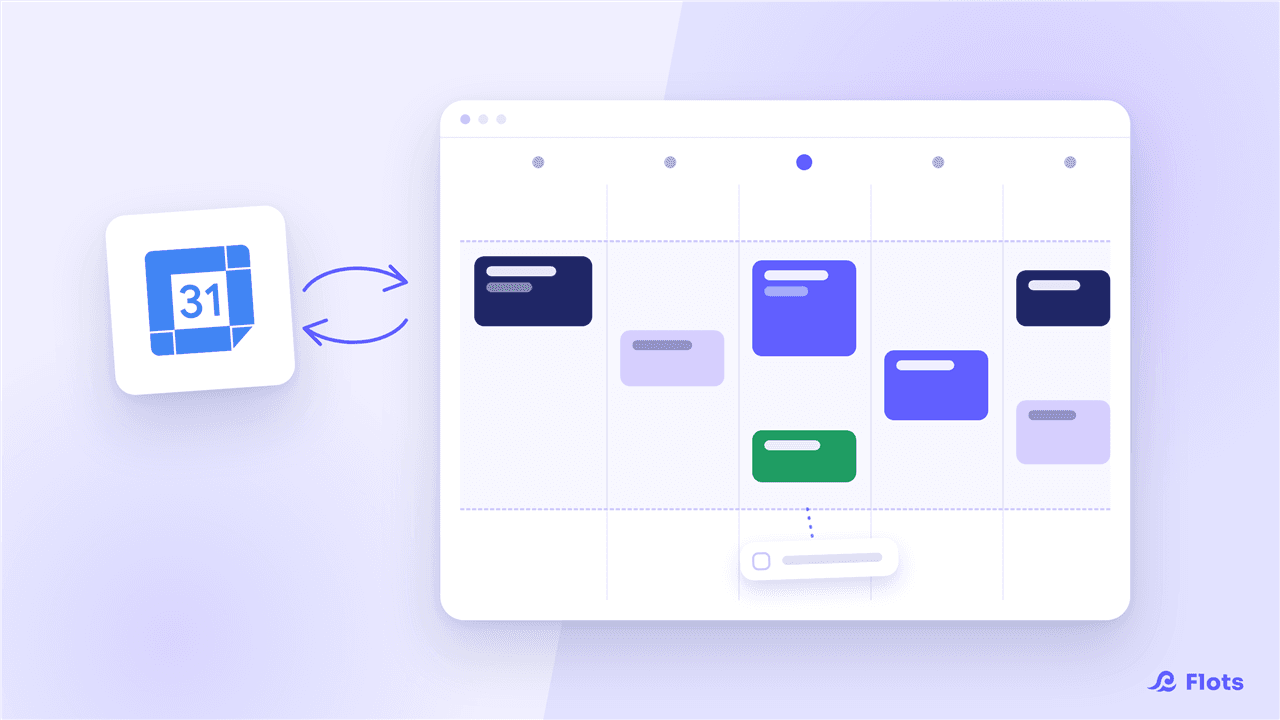
A work calendar, a personal one, a timetable, a club's schedule: once three sources land in the same day, you no longer know where what you're looking at came from.
Flots gives every connected calendar a colour, and a switch to turn it off when it gets in the way. Two settings, two minutes, and one word of caution: hiding a calendar and removing it from syncing are not the same thing.
Giving every calendar a colour
Head to Settings, the Calendar section, the Connections tab. Every connected calendar exposes its Calendar color setting there.
A Google account unfolds into as many calendars as it holds: your main one, the one your team shares with you, the birthdays one. Each gets its colour and its switch. An .ics feed counts as a single calendar no matter how many events it brings, so telling two timetables apart visually takes two feeds.
The palette is closed, and these are exactly the project cover colours. You pick from a defined set rather than a free hue.
The order is simple: an imported event takes its calendar's colour, a task Flots treats as an event takes its purple accent, and everything else keeps its category tint. So what came from outside stands out without any effort.
Hiding a calendar without disconnecting it
Every calendar also carries a Show this calendar switch. Turned off, its events leave the view and nothing else moves: syncing carries on in the background, the tasks stay in Flots. The filtering happens at display time rather than in the request to the server, so Hide this calendar and then turning it back on is instant, offline included.
The same switches sit in the Planning sidebar, so you can hide the work calendar on a Sunday evening, or keep nothing but the timetable during a revision session, without going back to the settings.
Hiding a calendar or removing it: the difference
One gesture touches the display, the other your data.
| Hide a calendar | Remove a calendar from syncing | |
|---|---|---|
| Where | Show this calendar switch, or the Planning sidebar | Choose calendars on the Google side, or deleting the .ics feed |
| Immediate effect | The events leave the view | Syncing stops for that calendar |
| On tasks already imported | None, they stay | Flots asks: keep them, or delete them |
| Reversible | Yes, in one click, offline too | You have to resync, and deleted tasks don't come back |
If you only want to lighten your view, hide. If you want a calendar to stop feeding Flots, remove it, and read the question Flots asks before you confirm.
Choosing which Google calendars enter Flots
On the Google side, the selection is handled by Choose calendars, which opens the Calendars to sync list. An Active calendars counter says how many are wired up, every selected row is marked Active, and two shortcuts, Select all and Deselect all, save you ticking fifteen rows by hand.
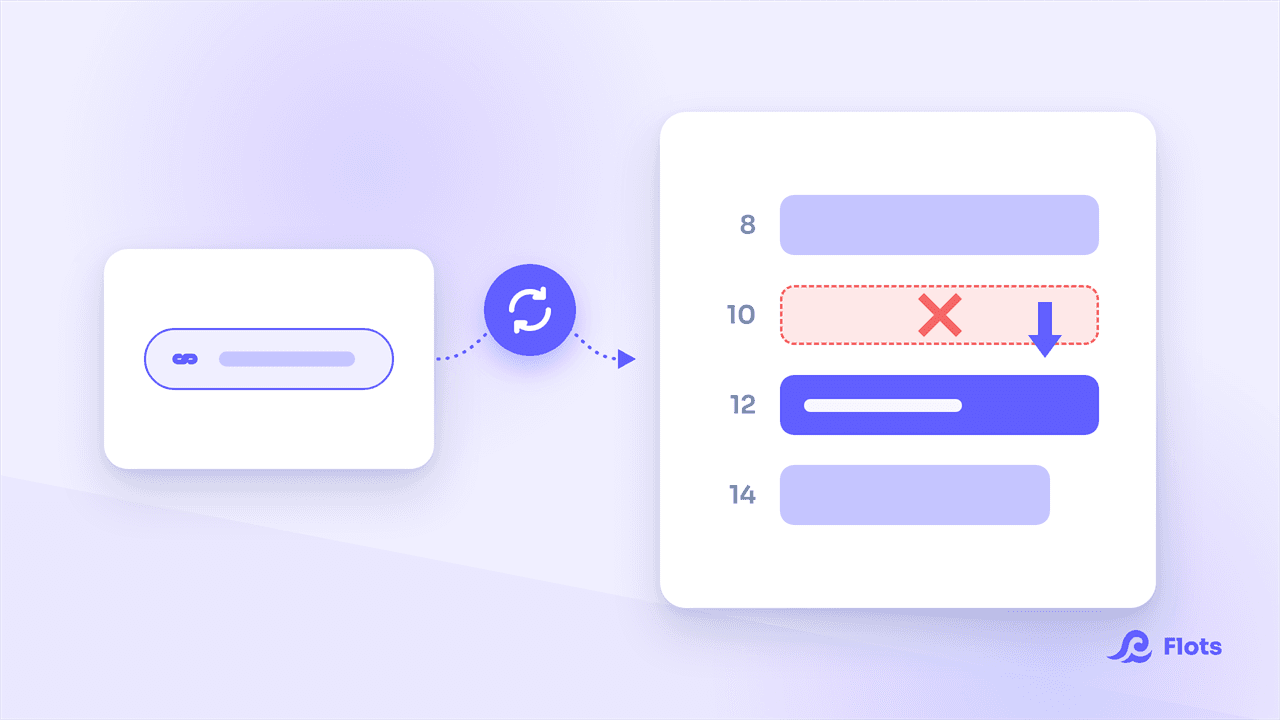
Taking a calendar out of that selection raises the question Remove calendars from sync?, with two explicit answers: Keep existing tasks, which leaves in Flots what has already been imported, or Delete imported tasks, which clears them out. Nothing is deleted unless you ask for it.

A shared calendar stays readable
Seeing the team's workload without turning your calendar into a wall of events.
Read the guideSet the colour once per connected calendar, then use the switches as the week goes. The rest of the calendar's views are covered in the calendar guide.
One colour per calendar, a switch for the rest.