When you're freelance or running your own business solo, nobody blocks off your 2pm meeting or closes your inbox after thirty minutes for you. The whole day rests on your own calls, made on the fly, as things land in front of you. Time blocking flips that: you decide in advance when each task gets done, instead of finding it on a list and improvising.
What Is Time Blocking?
The idea is simple: instead of keeping an open task list and picking from it based on mood or urgency, you reserve a specific slot in your calendar for each task or group of tasks. The day, hour by hour, has content decided ahead of time rather than in the moment.
Cal Newport, the computer scientist and author who popularized the method as Time Block Planning, argues that time blockers get roughly twice as much work done per week as those who work reactively. The mechanism comes down to one idea: attention residue. Every unplanned task switch leaves part of your attention stuck on what you just left, which cuts into the focus available for what's next.
That cost of switching context is documented elsewhere too: in a landmark study by psychologists Joshua Rubinstein, David Meyer and Jeffrey Evans, the American Psychological Association reports up to 40% of productive time lost to unplanned interruptions and task switching. Time blocking limits these breaks by deciding in advance what you're working on, and for how long.
Working Alone Means Losing Your External Referee
On a team, a manager sets priorities, a meeting claims a slot, a colleague flags a deadline. For someone working solo, none of that exists. Every micro-decision, "what do I do now?", falls back on you, dozens of times a day.
Time blocking replaces those repeated micro-decisions with a single one, made ahead of time: the week's plan. Once the slots are set, all that's left is to follow them. No need to ask yourself at 3:37pm what to work on next: it's already written down.
The Traps That Wait When No One Checks Your Schedule
On paper, time blocking looks straightforward. In practice, a few traps show up often, more so when you're working alone, with no one to question a schedule that's too optimistic.
Overbooking your day. Filling every single minute leaves no room for the unexpected: a client call, a task that runs long. An 8-hour day rarely holds more than 6 hours of genuinely focused blocks; the rest needs to stay open.
Underestimating how long blocks take. This is the classic planning fallacy: you plan for how long a task would take under ideal conditions, never how long it actually takes. With no colleague to temper the estimate, the same gap repeats week after week.
A schedule that's too rigid. Time blocking is a guide, not a cage. Something unexpected that runs over a block should push the following blocks back, not derail the whole day.
Never revisiting the schedule. With no team check-in to review what happened, it's tempting to repeat the same week indefinitely, without adjusting what isn't working.
Before / After: A Week With Time Blocking
| Without time blocking | With time blocking |
|---|---|
| Open list, priorities decided moment to moment | Every task has a slot, decided in advance |
| Day driven by interruptions | Protected blocks for the work that matters |
| Weekly workload hard to gauge | Workload visible from Monday morning |
| Undated tasks pile up | Undated tasks visible, ready to be placed |
The Planning View: Time Blocking Built Into Flots
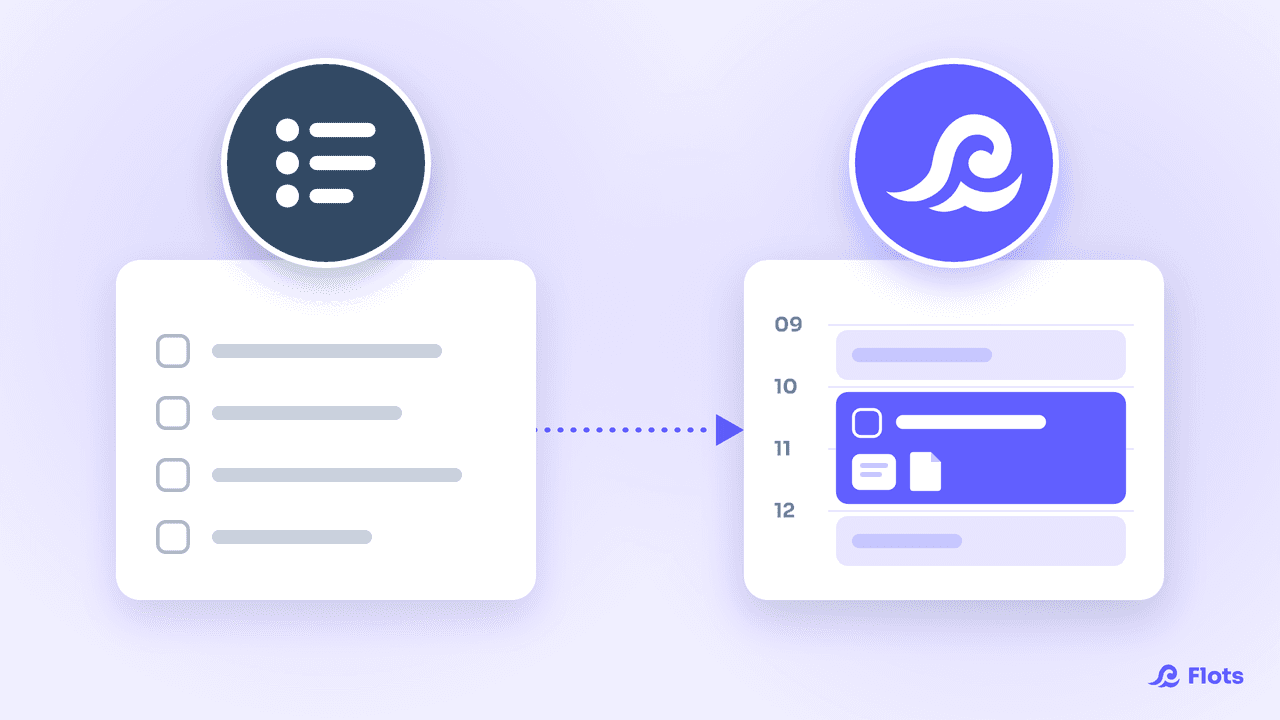
Time blocking usually means juggling a task list and a separate calendar: note the task on one side, copy the slot over on the other. Flots' Planning view removes that double entry. Your tasks and your calendar live in the same place, on the same screen.
In practice, the day view shows your scheduled tasks placed on their time slot, and your undated tasks sitting off to the side, ready to be dragged into the day. You see at a glance what's already blocked and what's left to place: exactly the move time blocking asks for, without switching tools.

The Planning view in detail
Day view, week view, workload readable at a glance: everything Flots' Planning view brings together.
Discover the Planning viewDragging Your Tasks Onto Realistic Slots
Creating a task in Flots only takes a title. Category, subtasks, recurrence, reminders stay optional, to add only if needed. Once the task exists, you just drag it onto the slot that suits it in the Planning view or the calendar.
Setting your working hours ahead of time is what actually prevents the overbooking trap: Flots knows your available windows and tells your work time apart from the rest. If your Google Calendar is connected, your existing appointments show up too, so the plan reflects your real week, not an idealized one.
Time blocking gets refined week after week. Taking five minutes at the end of the week to adjust the blocks that keep running over does more for making the method stick than any initial setup. If the real issue is capturing and sorting everything landing on your desk before you even plan it, a method like GTD can usefully complement time blocking.
Time blocking just needs a place to put your tasks against the time you actually have. That's exactly what the Planning view does. The simplest way to see it is to try it on your coming week.
Block your slots without switching screens.
Drag your tasks onto the calendar, set your working hours, and let the Planning view keep your week up to date.