Moving from Notion or Todoist to Flots no longer means exporting files and rebuilding everything by hand. A two-click connection is enough: Flots goes and fetches your projects, tasks and notes right where they already are, and recreates them on the other side.
Notion and Todoist: two different ways to hit a wall
Notion and Todoist don't run into the same problem. Notion hands you a construction kit: databases, relations between them, filtered views. Appealing on paper, but a system that holds up over time needs designing first, then maintaining every time a new need comes up. Plenty of people end up spending more time tweaking their templates than working inside them.
Todoist takes the problem from the other end: a solid task list, but a silo. Meetings stay in a separate calendar, notes in a separate app, and the link between the three only exists in the head of whoever's using it.
Flots starts from a different premise: a space already structured for tasks, calendar, notes, documents and projects, ready the moment you sign in.
Connect, don't export
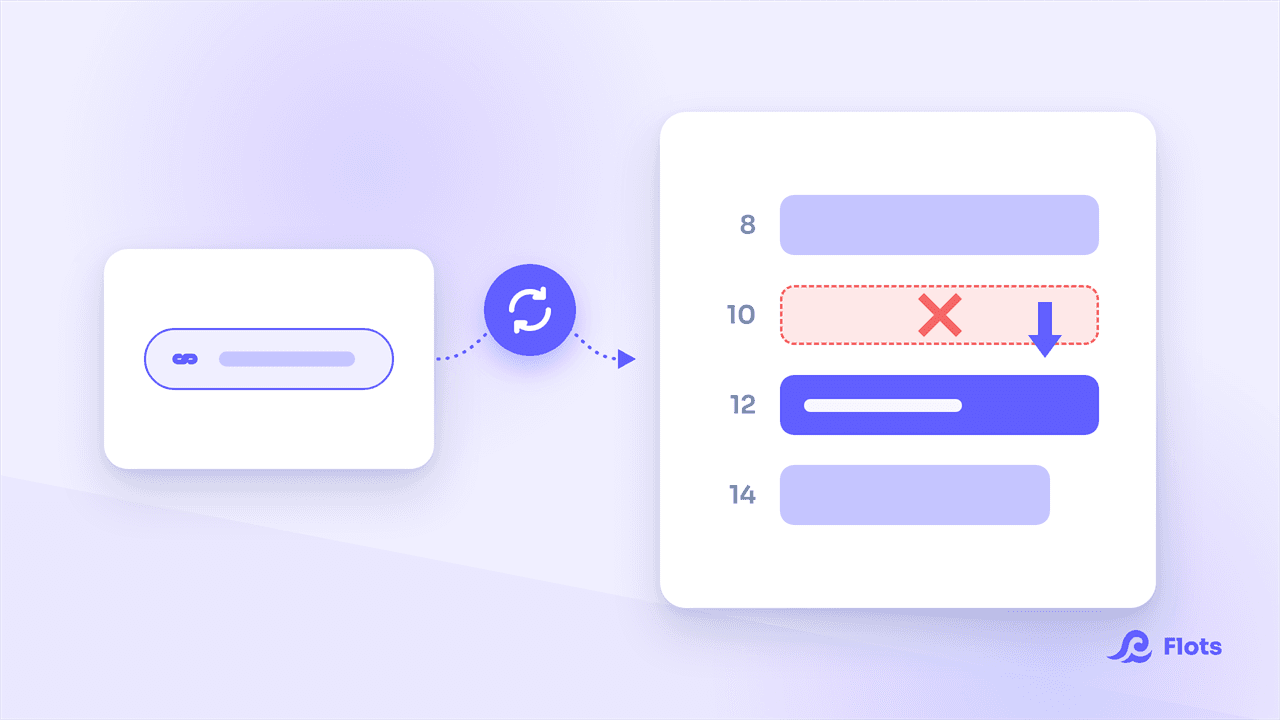
The move happens from Flots' settings, by connecting a Notion or Todoist account through OAuth, the same kind of authorization used to link a Google account to any other tool. Once access is granted, Flots fetches the structure and content straight from the source API: no file to download, no page to copy and paste.
Connect Notion or Todoist to Flots →
The whole thing runs automatically. Once the connection is made, there's nothing left to sort out or fix afterward.
What happens to your Notion data
A Notion database with a status column or a checkbox, a task database, in other words, becomes a Flots project: each row becomes a task. A database without a status, a resource library or a contacts table for instance, becomes notes, one per row. A standalone page, outside any database, also becomes a note, its content (headings, lists, checkboxes, quotes) converted to Markdown.
A "Clients" database with a Status column (To contact, In progress, Signed) becomes a Clients project this way, each client a task carrying its status. A "Resources" database with no tracking column becomes a stack of notes instead, one per resource.
The rest follows: Notion's status becomes the task's status, priority becomes importance, a date becomes the deadline (or an event if a start and end are both set), tags become categories, and the first person assigned becomes the assignee in Flots.
What happens to your Todoist data
Every Todoist project becomes a Flots project. Sections inside a project become categories, a way to group tasks without giving them a separate container, and labels become categories too, this time on the task. Priority and dates, recurrence included, carry over as they are.
A "Clients" project with sections by month or by salesperson keeps that structure as categories; tasks marked priority 1 stay high-importance in Flots.
Subtasks come along, flattened to a single level if several were nested. Comments left on a task become notes, attached to the right project.
| Before | After importing into Flots |
|---|---|
| Notion database with a status | Project + tasks |
| Notion database without a status | Notes |
| Standalone Notion page | Note (content in Markdown) |
| Todoist project | Project |
| Todoist section or label | Category |
| Todoist comment | Note linked to the project |
Connecting a Notion or Todoist account takes less time than exporting a single CSV file. Projects, tasks and notes are already in place on the other side. The getting started guide covers what comes next, once the connection is made.
Move to Flots without starting from scratch.
Connect your Notion or Todoist account: Flots automatically pulls in your projects, tasks and notes.