You reopen a project after ten days. The first minute goes into looking for the brief, then the note where you wrote down the decisions from the last check-in, then the task that was blocking everything. It's always the same three items, and you look for them every time.
That's what pinning is for: putting those items at the top of the project so they're waiting for you as soon as you open it. This guide shows what you can pin in Flots, and above all how to choose what to pin so the project space stays readable.
What pinning is for in a Flots project
In Flots, a project brings together the tasks, notes, milestones and documents of a single subject. On a long-running project, that quickly adds up to a lot.
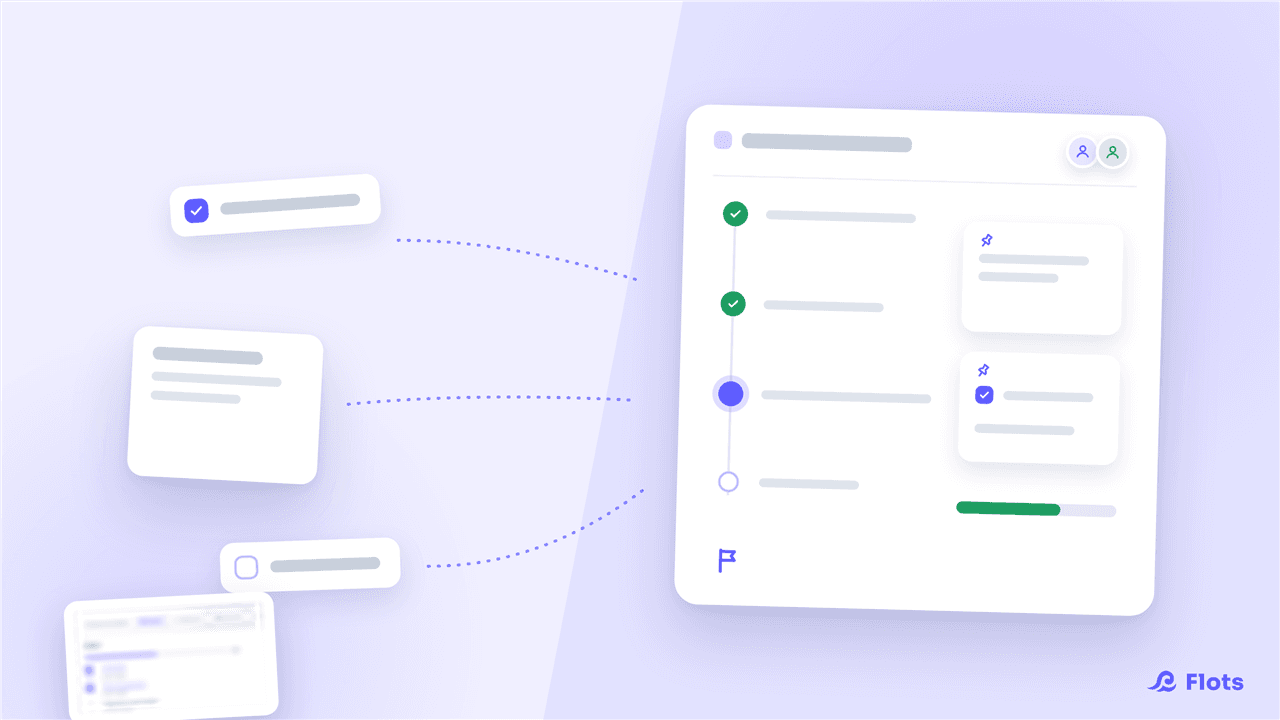
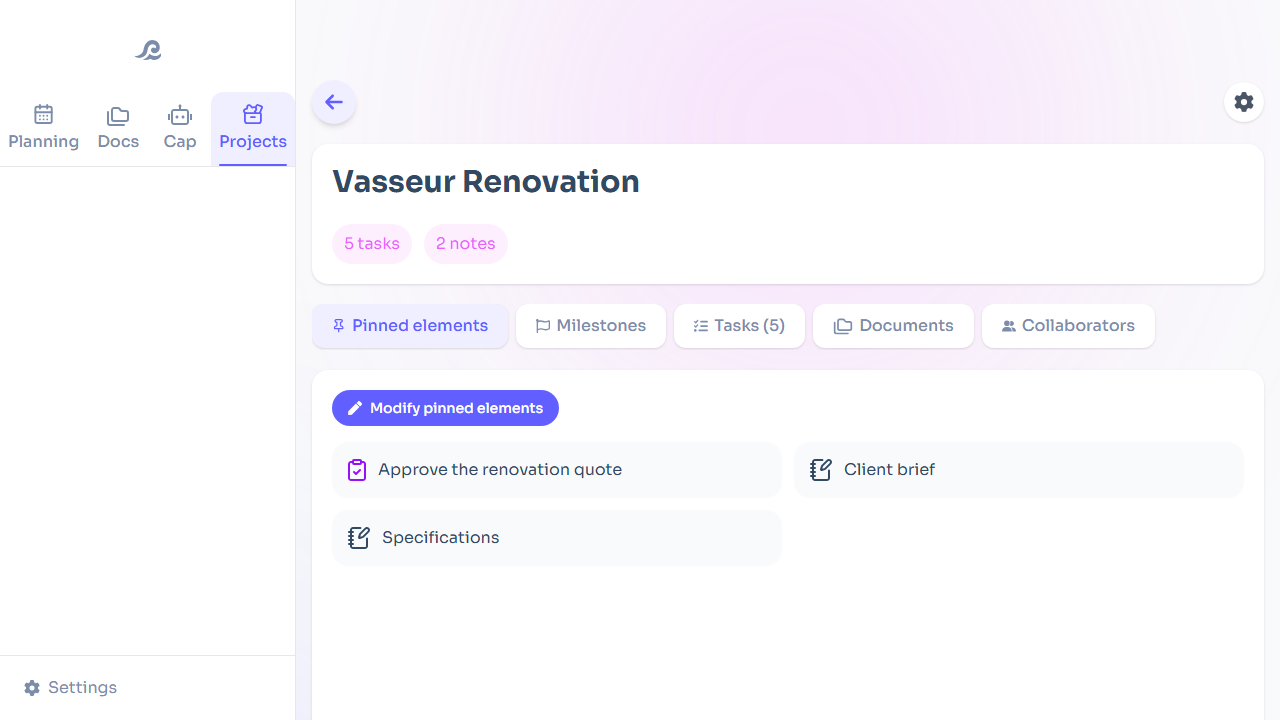
Among them, a few come back at every work session. You pin them, and they move to the project's front page: the Pinned items tab, placed before milestones, tasks, documents and collaborators. When you open the project, you land straight on what matters instead of digging through lists.
The "Edit pinned items" button adjusts that selection as the project evolves. You can also change the order of your pins: put the one you open most at the front.
Which items to pin in a project
A pin can be a note, a task, a link or a short piece of text. The ones that deserve their place are what you keep reopening. A few typical examples:
- The brief or scoping note. It's the original request, the one you reread before each delivery to check you're still answering it.
- A reference note. Decisions made, contacts, guidelines to follow: something you consult more than you edit.
- The task the rest depends on. The one everything else hinges on, and that you don't want to see slip into the middle of thirty others.
- A link or a short piece of text. The URL of the live mockup, the client's shared folder, the site address, the instruction everyone forgets.
Files (the contract, the signed quote, the specification as a PDF) don't go through this tab. They're pinned in the project's Documents tab, or filed in a folder specific to the project: the details are in getting started with documents.
The list isn't closed. The right test stays the same: if you go looking for this item almost every time you open the project, it belongs at the top.
How many items to pin
Our advice: two or three. Rarely more.
The constraint comes from reading. A pin is there to make something stand out. With eight pinned items, the top of the project turns back into a list to scroll through, and you're back where you started.
If you're torn between several candidates, keep the one you opened most often last week. The others stay in the project, in their usual place.
When to remove a pin
A project changes. What was central at launch no longer is three weeks later. A few signs that it's time to unpin:
- You haven't reopened it in a week or two. The item has become an archive and can leave the top of the project.
- It's been replaced. A V2 of the brief, a new link to the mockup: pin the current version and remove the old one, so you don't work from something outdated.
- The milestone it served has been passed. The blocking task is done, the mockup is approved. Make room for what the next part depends on.
The simplest approach is to take a look when you go over your projects. A weekly review is the right moment: two seconds per project to check that the pins still say what matters.

Pin the brief as soon as you create the project
It's often the first item you look for when you come back to a project, and the last one you think of filing.
Structuring a project space so you can find your way
Pinning works better when every item in the project has a clear place. Each of the project's tools answers a different question:
| What you want to know | Where to find it in the project |
|---|---|
| What do I need to reread when I come in? | The Pinned items tab |
| Where does the project stand? | The Milestones tab |
| What's left to do? | The Tasks tab |
| Where are the files? | The Documents tab, and its folders |
| Who's working on it? | The Collaborators tab |
Keeping this separation avoids two common mistakes. The first: pinning a progress milestone, when the project's milestones already show what's done and what comes next. The second: looking for the contract among the project's pins, when files have their own place (and their own pins) in the Documents tab.
Notes also have their own logic. When you take a meeting note in the project, Flots spots the actions written in the text and brings them up to the top of the note as tasks. So the meeting note doesn't need to be pinned for its actions to stay visible. Save the pin for the reference note, the one the whole project leans on.
Open the project you're working on most right now. Spot the two items you went looking for every time this week, and pin them.
Keep the essentials of every project on top.