Getting a team on the same page tends to turn into a headache. Either everyone keeps their own calendar in a corner and overload shows up too late, or you cram everyone into one shared calendar and autonomy over your own time goes with it. There's a better way: keep the calendars separate, but connect what's in them.
The trap of the single shared calendar
The first instinct, as a team grows, is usually to merge every calendar into one shared view. On paper it sounds logical: everyone sees everything, no surprises.
In practice, that single calendar quickly becomes a problem of its own. Everyone has to justify their personal blocks, a doctor's appointment sits next to a client meeting, and the line between work and personal life dissolves in front of the whole team. People stop blocking their time honestly, or avoid touching the calendar altogether. The shared calendar loses the one thing that made it useful: reliability.
Everyone keeps their own agenda, linked to their own tasks
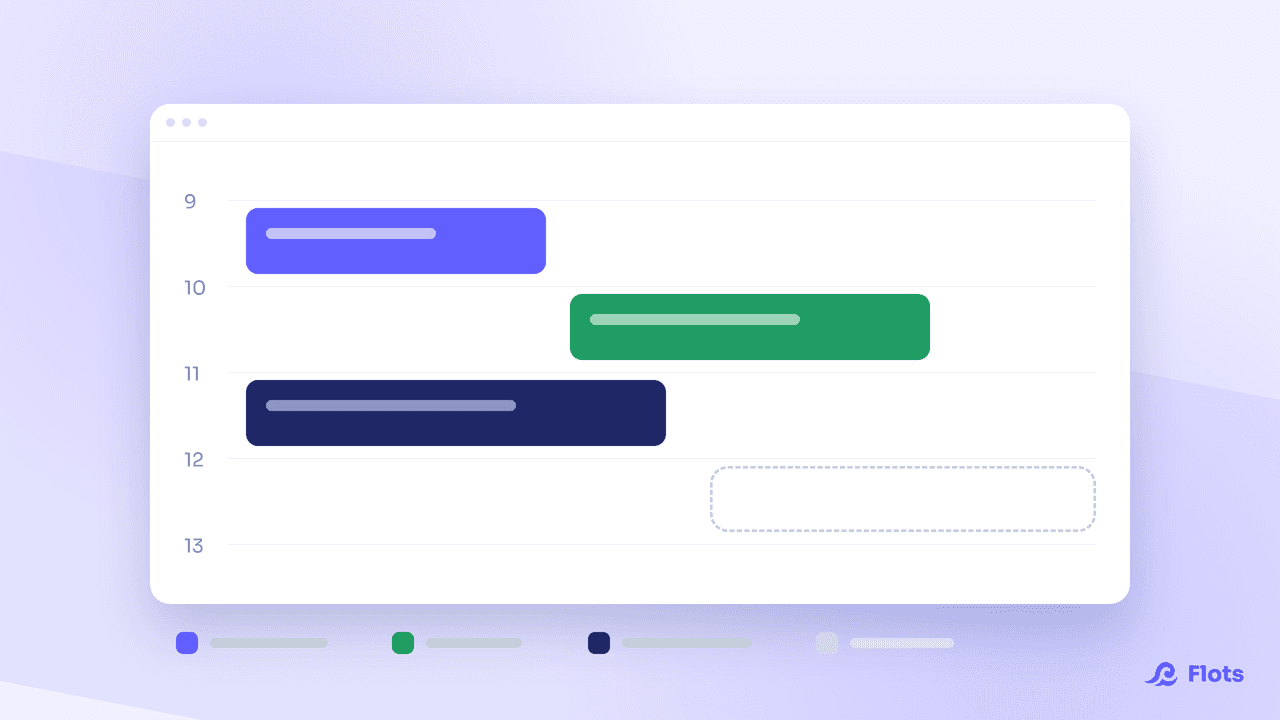
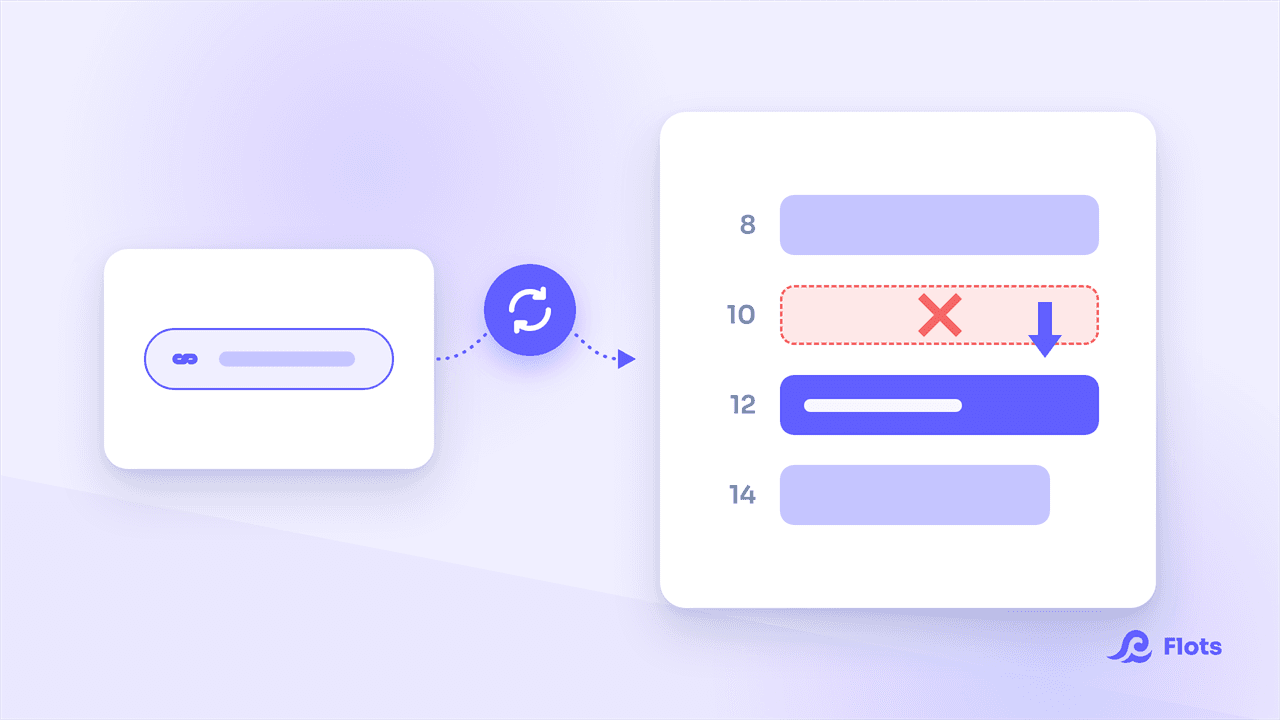
In Flots, the agenda stays individual. Each person connects their own Google Calendar, sets their working hours, and drags their tasks onto the time slots that suit them. No one browses a colleague's agenda in detail, and no one has to justify it.
That autonomy isn't a lack of visibility for the team. It's the foundation collective visibility gets built on, without ever forcing anyone to expose their entire schedule.

Autonomy doesn't mean invisibility
The right level of sharing isn't "see everything" or "see nothing" — it's seeing the workload without seeing the details of everyone's schedule.
Assigned tasks make workload visible without watching a calendar
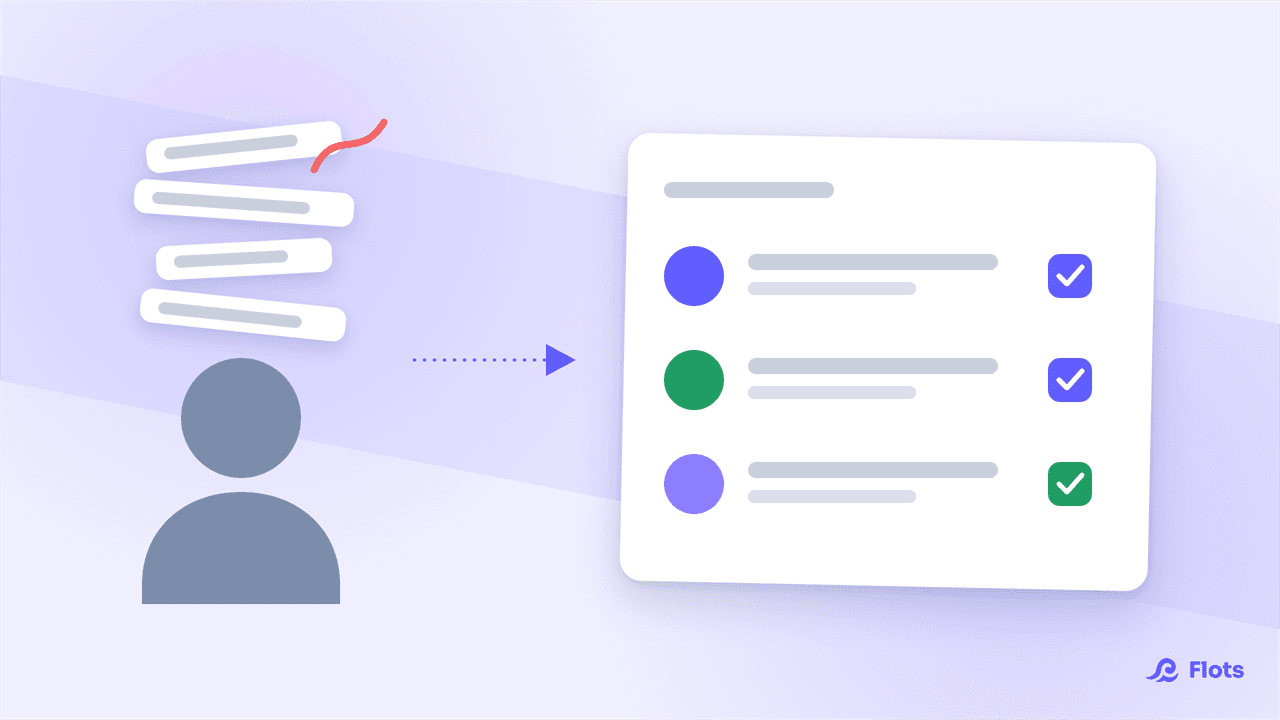
For a team, what matters is whether the file is moving forward, not what's on someone's calendar today. In a shared Flots project, a task assigned to a team member shows up directly in their own list. Its progress updates the moment they check it off.
You know the quote went out or the client file is closed without ever needing to open anyone's agenda. Workload shows up in the tasks, not in each person's time slots.
The weekly Planning view catches overload before it hits
There's still the question of collective pace: who's swamped this week, who has room. That's the job of the Planning view in week mode. It shows, day by day, the workload built from the tasks assigned to each person.
At a glance, you spot a packed day for one person and a lighter one for another, and you rebalance by dragging a task from one day to the next. The Planning view lets you see overload coming before it lands on someone at the end of the week, no meeting required and no need to open anyone's agenda.
Before / after: coordinating without merging
| Before | With Flots |
|---|---|
| One shared calendar where everyone sees everything | An individual agenda per person, linked to the same tasks |
| Overload discovered too late, buried in a message | Planning view: team workload visible week by week |
| Personal blocks to justify in front of everyone | Autonomy preserved over your own agenda |
| Workload split by hand, at the end of the week | Tasks dragged from one day to another as workload shifts |
A team moves forward by seeing everyone's workload, without prying into anyone's schedule or merging calendars. Start by setting up your own agenda, assign the first shared task, and let the Planning view handle the rest. For what comes next, the guide to organizing a small team as it grows picks up the thread: projects per client, delegation, per-user pricing.