You know the client who calls back "about last week's quote." The quote is buried in an email, the brief in a PDF downloaded who knows where, and the delivery date you promised over the phone is scribbled in the corner of a notebook. You're not alone: at the end of 2024, France had more than 2 million economically active micro-entrepreneurs, a first since the status was created, according to Insee.
Why so many tools end up living side by side is something we covered in freelance organization: escaping tool sprawl. This one is hands-on: setting up your clients in Flots, one at a time, and keeping the pace.
Create one project per client
Start with the simplest rule: one client, one project. The project holds that client's tasks, notes, milestones and files. When the client calls back, you open their project and the context is right there.
If the same client hands you two unrelated jobs on different timelines, two projects stay easier to read than a single catch-all.
In each project, pin the two or three items you keep reopening: the brief, the scoping note, the task everything else depends on. They show up at the top of the project.
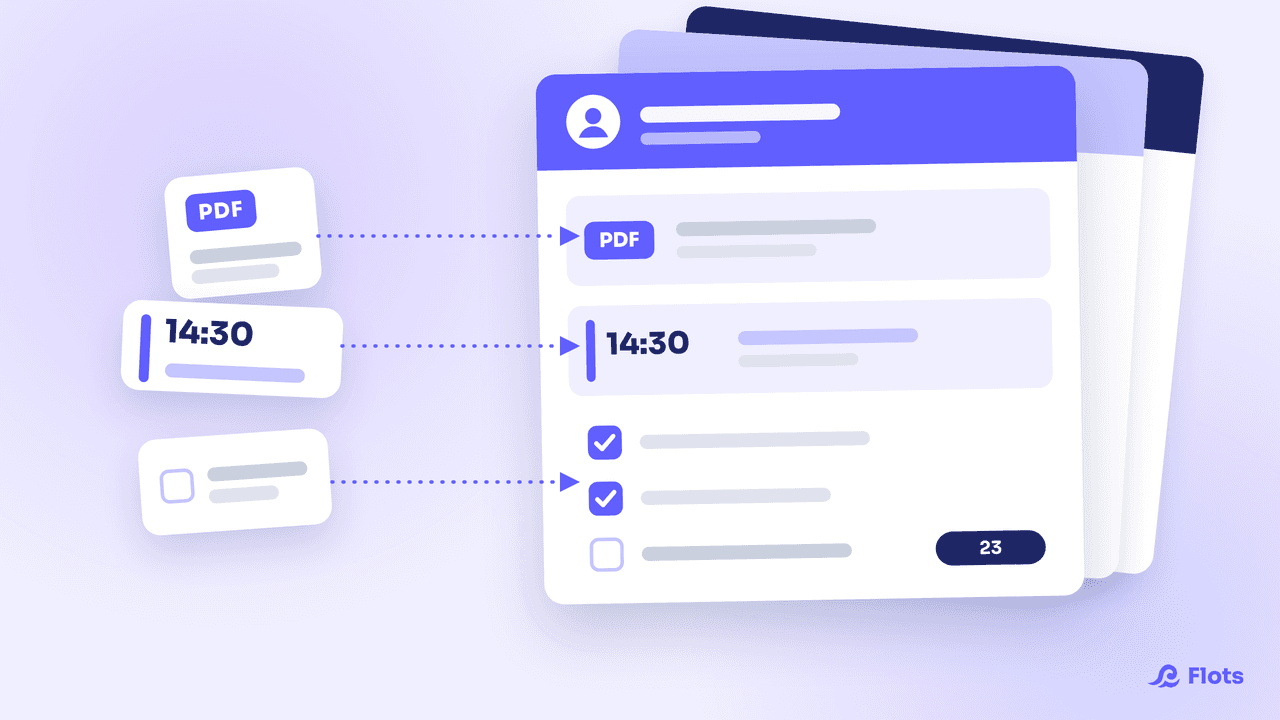
| What comes in | Where it goes in Flots |
|---|---|
| A request over the phone | A task in the client's project |
| A brief or quote as a PDF | A document linked to the project |
| Meeting minutes | A note in the project |
| A follow-up meeting | The calendar, visible in the Planning view |
Track each client's tasks and deadlines
A task needs nothing more than a title: "Send the quote," "Follow up for sign-off." Add more only when it's worth it: a due date, sub-tasks to break down a delivery, a description to keep the client's exact instructions.
For the big picture of a job, set the project's milestones: quote accepted, first version delivered, feedback incorporated, final delivery. You can see where the job stands without rereading every task.
Tasks that come back get set up once as recurring, with a reminder: a regular client's monthly report, sending out invoices, the revenue declaration to Urssaf (monthly or quarterly for French micro-entrepreneurs). And each time you send a quote, create its "Follow up" task right away, with a date.
If a subcontractor works on a job, you can share the project with them and assign them their tasks. Everyone sees what's theirs, without trading messages to find out.
Keep the brief and meeting notes in the right place
The original brief deserves its own note in the project, pinned on day one. Reread it before every delivery: it's the initial request, the one you have to answer.
During a client call, take notes directly in a project note. Flots picks out the action items written in the note and turns them into tasks, shown at the top of the note. "Send the mockups Thursday" doesn't stay buried in the middle of a paragraph.
The minutes can then go to the client: the note exports to PDF or Word, formatting included. And if you walk out of a meeting with no keyboard at hand, a voice note recorded on mobile goes straight into the client's project.
Organize quotes, briefs and client files
A quote received by email can be dragged and dropped into the Documents space, or pasted straight from the clipboard. Flots accepts PDFs and images (JPEG, PNG, and iPhone HEIC photos, converted on upload). On mobile, you can snap a paper purchase order from the app.
Once linked to the project, the file appears in the client's Documents tab, next to their tasks and notes. One click opens a preview of the PDF in Flots, without downloading it.
Flots stores your working documents. Your invoicing software and accounting keep their place.
Fit client meetings into your calendar
Connect your Google Calendar: your existing events show up in Flots, with no double entry. Set your working hours too, so the calendar can tell your work time apart from the rest.
The Planning view then shows your meetings and the day's tasks on one screen, with undated tasks set off to the side. Before taking on a new job for next week, a quick look tells you whether there's still room.
The freelancer's end-of-week routine
On Friday, half an hour is enough to start Monday without nasty surprises. Set it up as a recurring task so it comes back on its own every week.
- Open each client project: what's overdue, the next milestone, the closest deadline.
- Reread the week's meeting notes and check that every extracted task has a date.
- File any loose documents into the right projects.
- Drag your priority tasks onto open slots for next week, in the Planning view.
The idea comes from the weekly review, adapted here for a business organized around clients.
Start small: create a project for your most active client, drop in their latest quote and write down the next three tasks. The other clients will follow once the first one has proven itself.
Set up your first client in Flots.
Tasks, meeting notes, quotes and meetings together in one project per client.