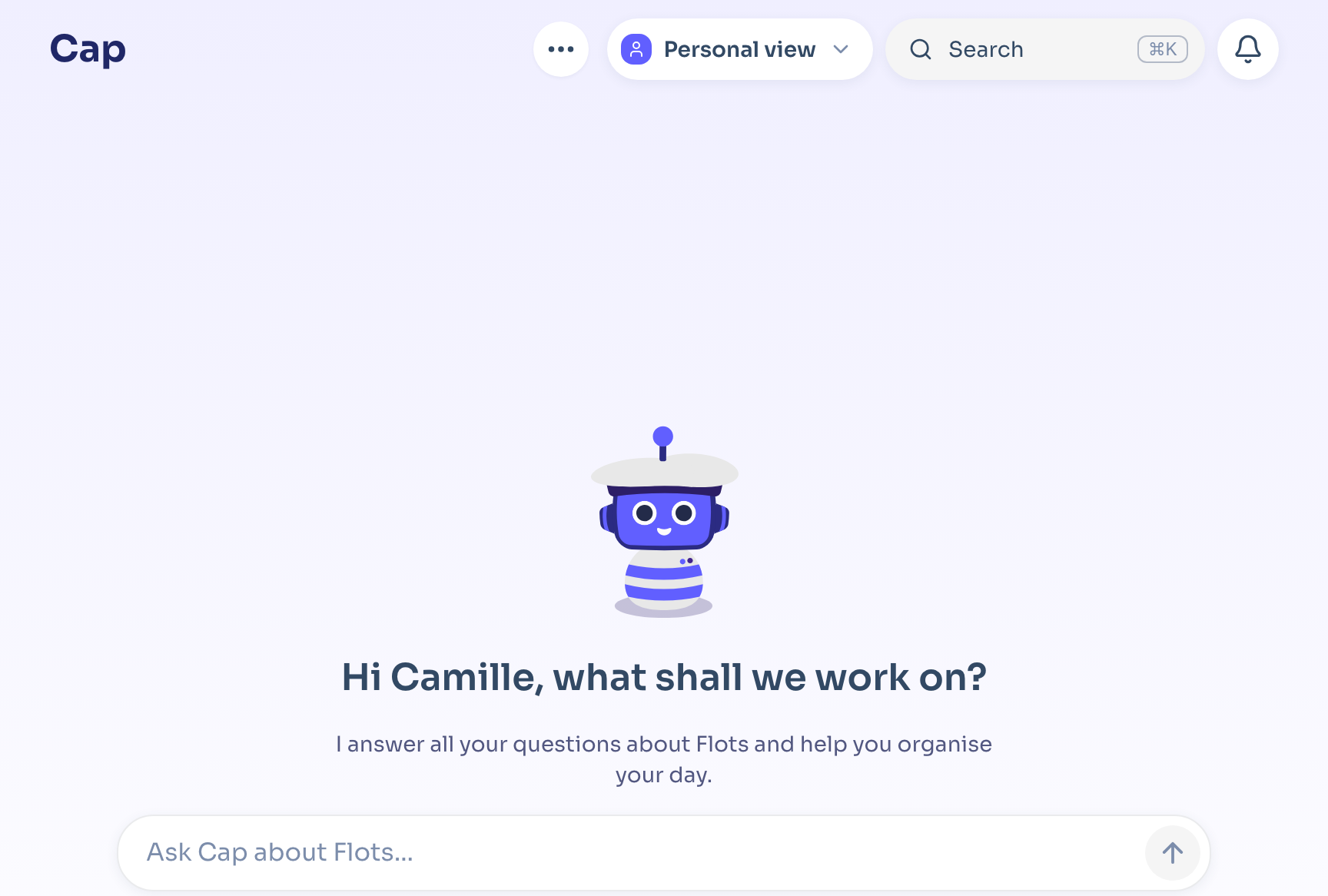
On the web, Flots fits in a single column (Today, Tasks, Calendar, Docs, Projects). On mobile, it fits in a bar at the bottom of the screen. At the top of every page you'll always find search, Cap and the notification bell. Keep those three landmarks in mind and you'll know where everything is.
The sidebar on the web
| Section | What you'll find there |
|---|---|
| Today | Your tasks for the day and your calendar, side by side. It's the default home page. |
| Tasks | All your tasks, as a List or a Kanban board. |
| Calendar | Your events and scheduled tasks, by day, 3 days, week, month or list. |
| Docs | Notes, PDFs, images and whiteboards, with Quick access and your Recently accessed files. |
| Projects | Each project brings together its Overview, its tasks, its Documents and its team. |
| CRM | Contacts, deals and follow-ups, if your plan includes it. |
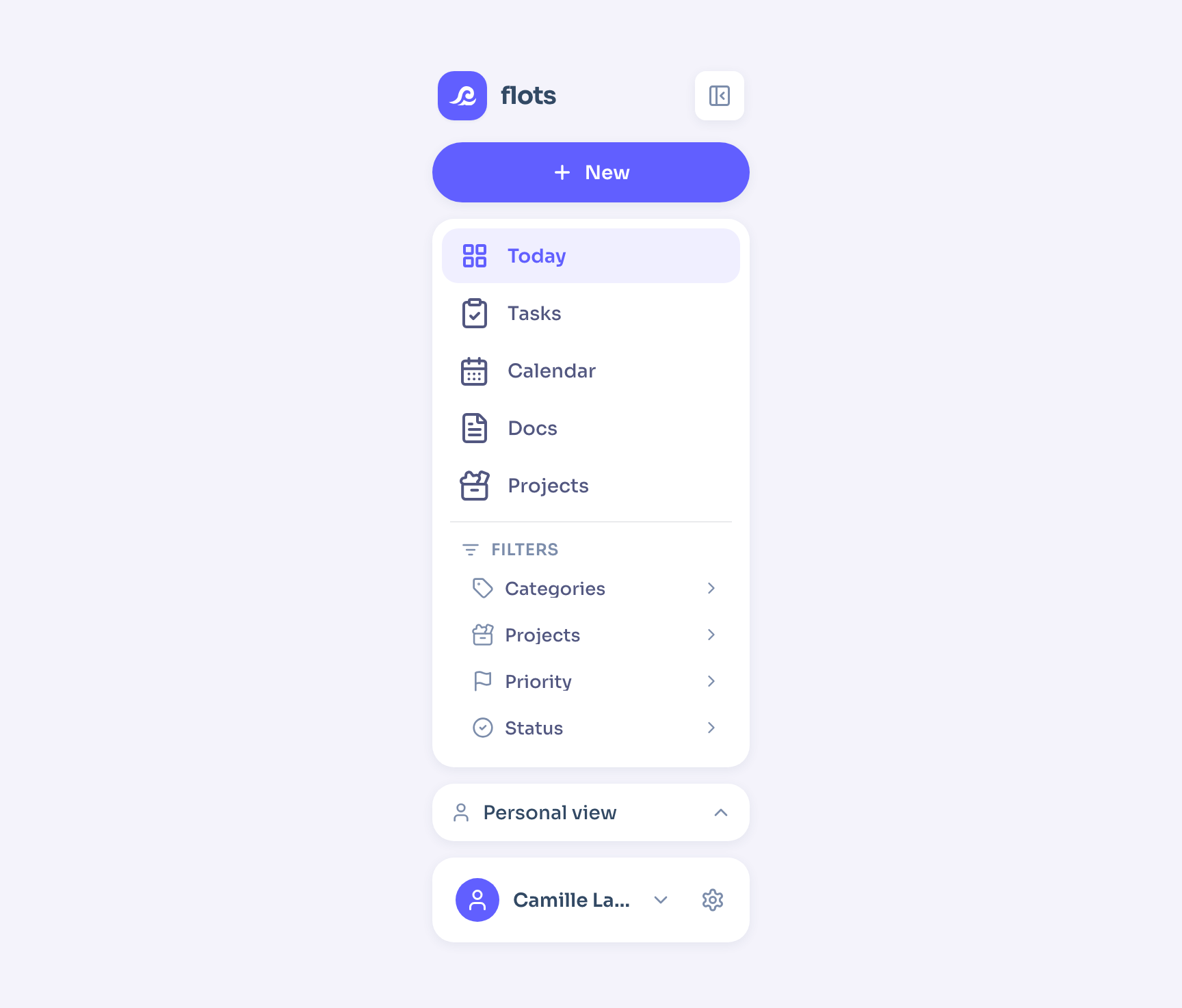
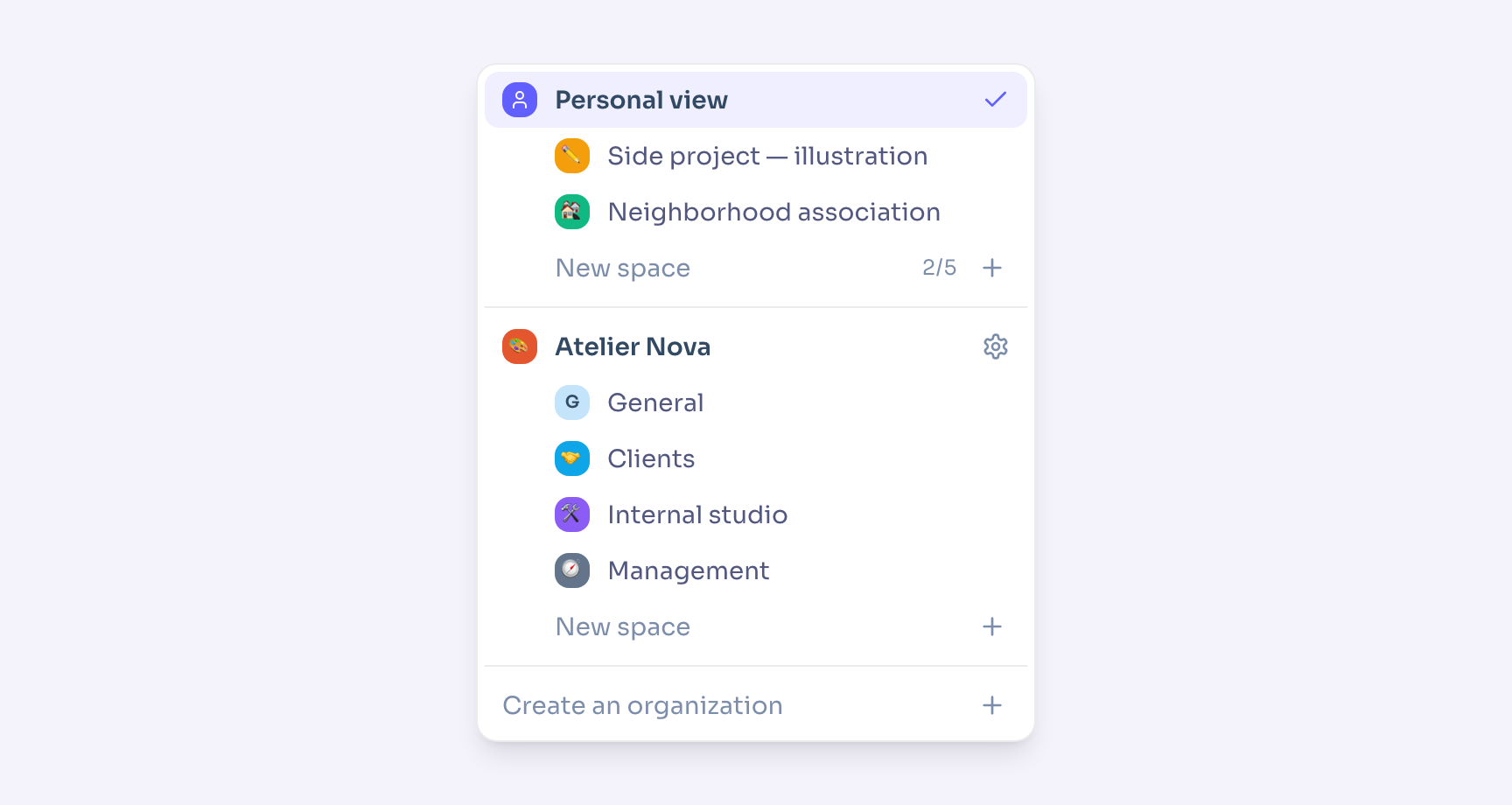
At the bottom of the column, and at the top of every page, the space switcher moves between the Personal view (everything that concerns you) and one of your spaces, or your organization's.
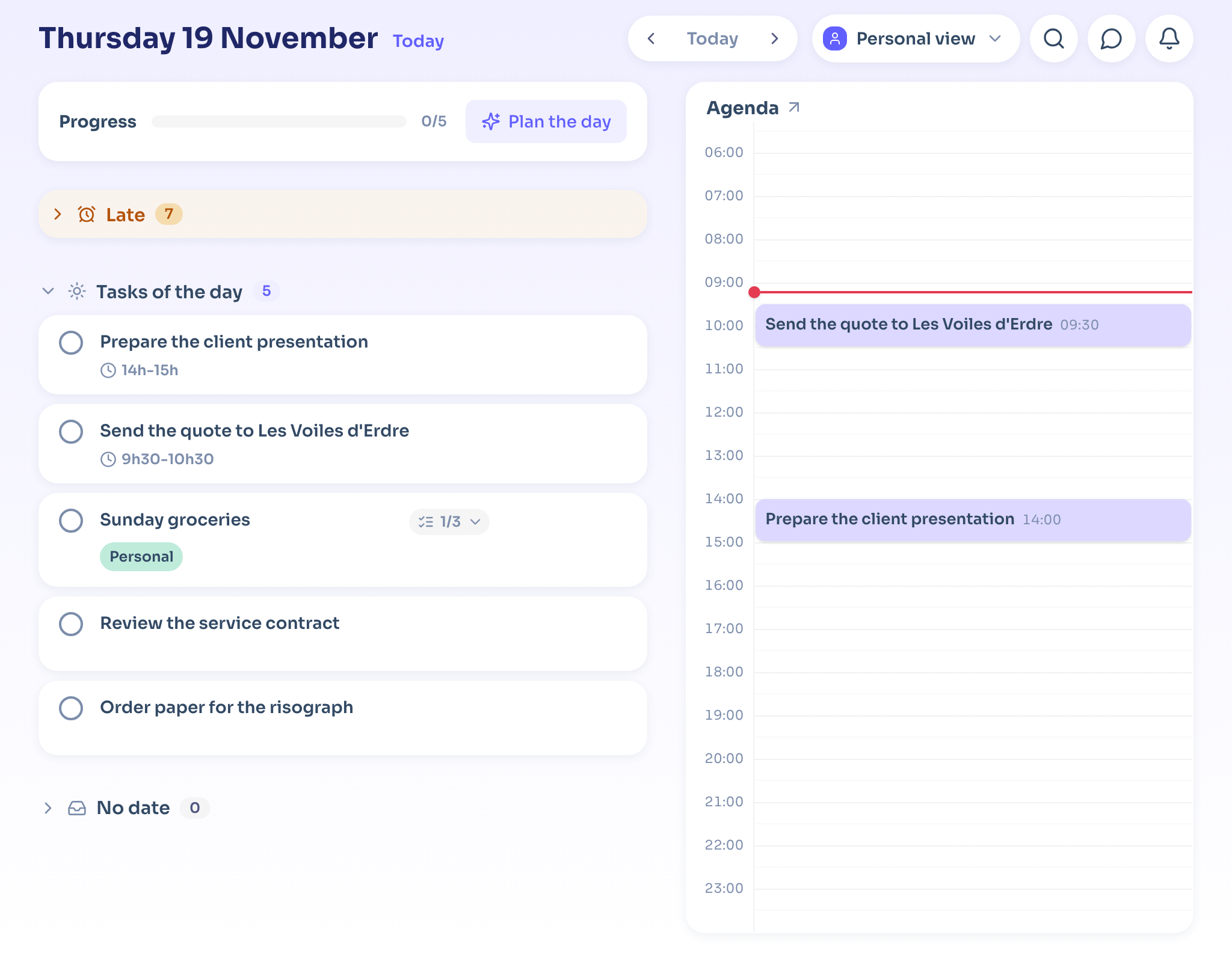
Today: your day on one page
The page reads top to bottom. Tasks fall into three groups: Late, Tasks of the day and No date. On the right sits the day's calendar.
To fit a task in, drag it onto the calendar: it takes the slot where you drop it. The Plan the day button opens the morning sort, where you decide what you'll actually do today.
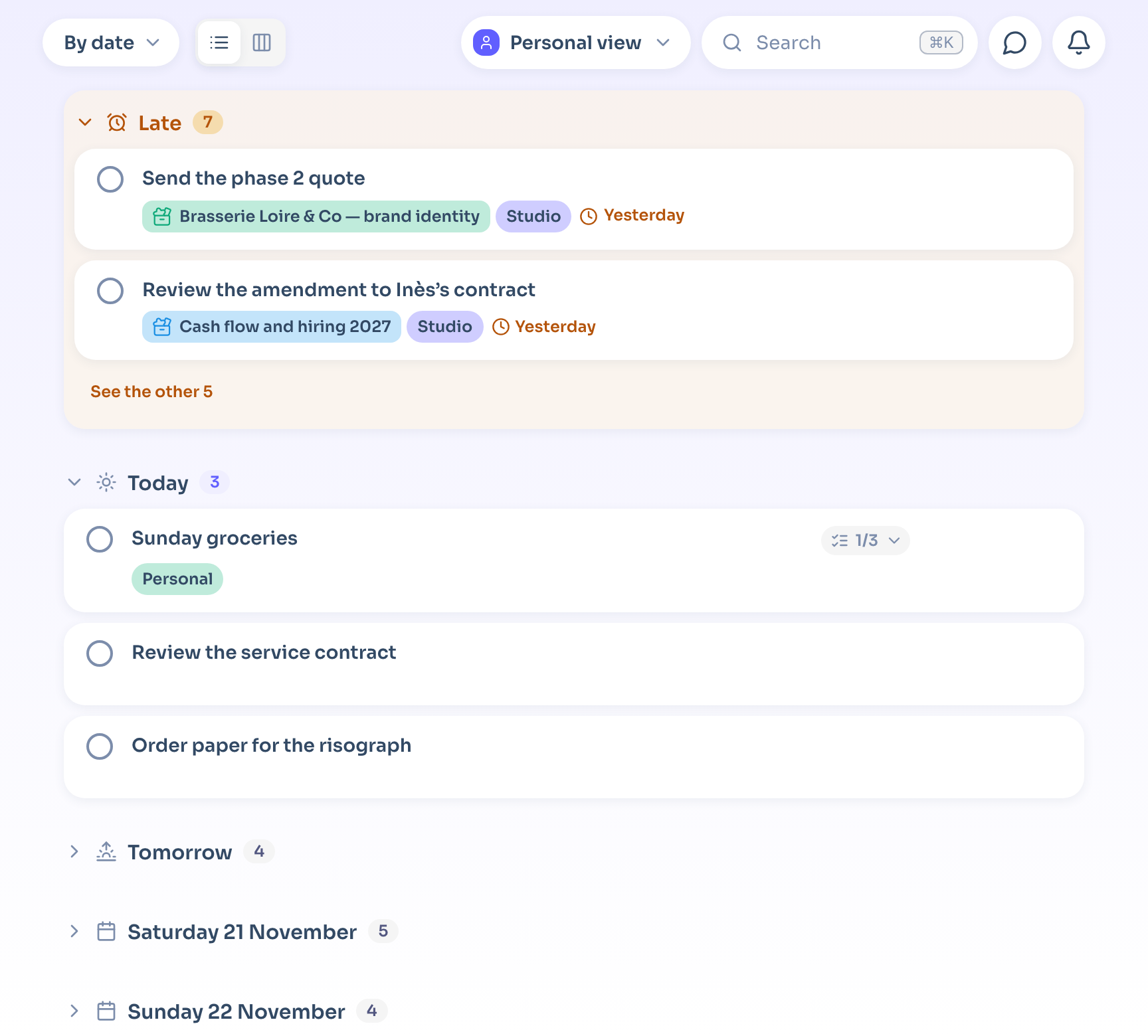
Tasks: the list your way
Group by date, project, priority or category, and switch between List and Kanban in one click. Hover a task to start it, Postpone it or edit it.
You can do it all from the keyboard: ↑ ↓ to browse, Enter to open, X to complete, P to postpone.
Calendar, Docs and Projects
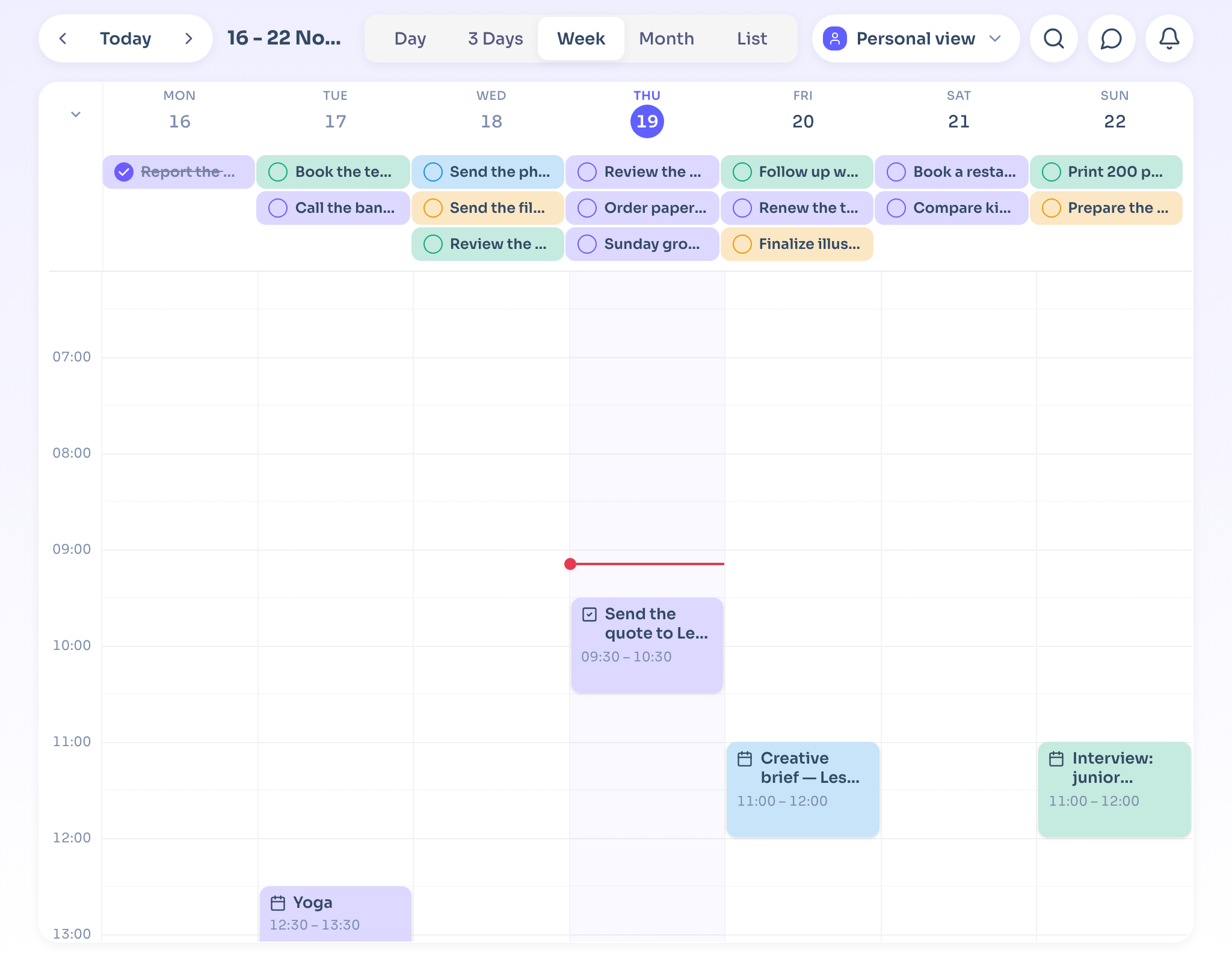
The Calendar shows your events and scheduled tasks. Switch between Day, 3 Days, Week, Month and List at the top of the page.
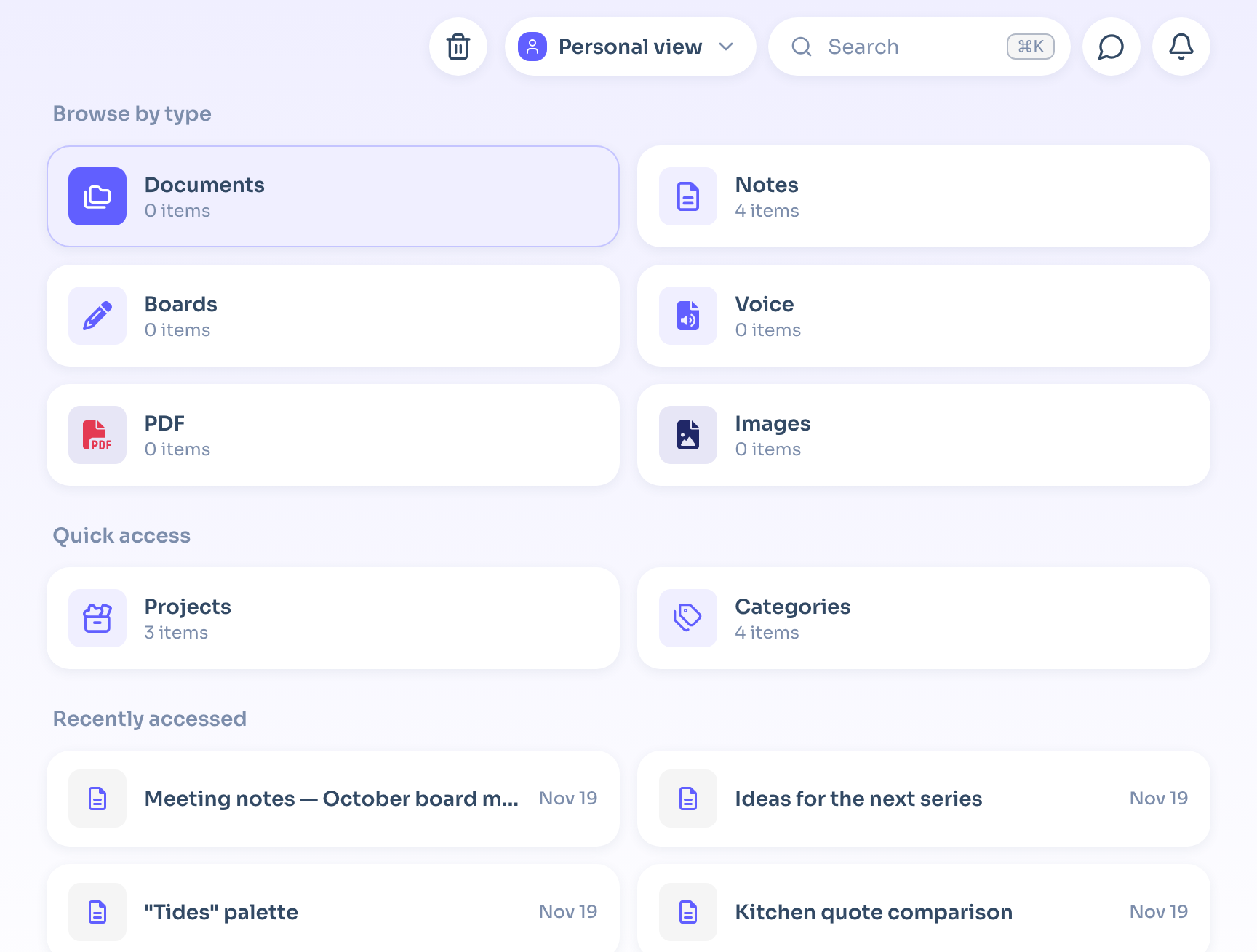
Docs sorts your documents by type (notes, boards, PDFs, images, voice notes), with Quick access to your projects and categories, and your Recently accessed documents.
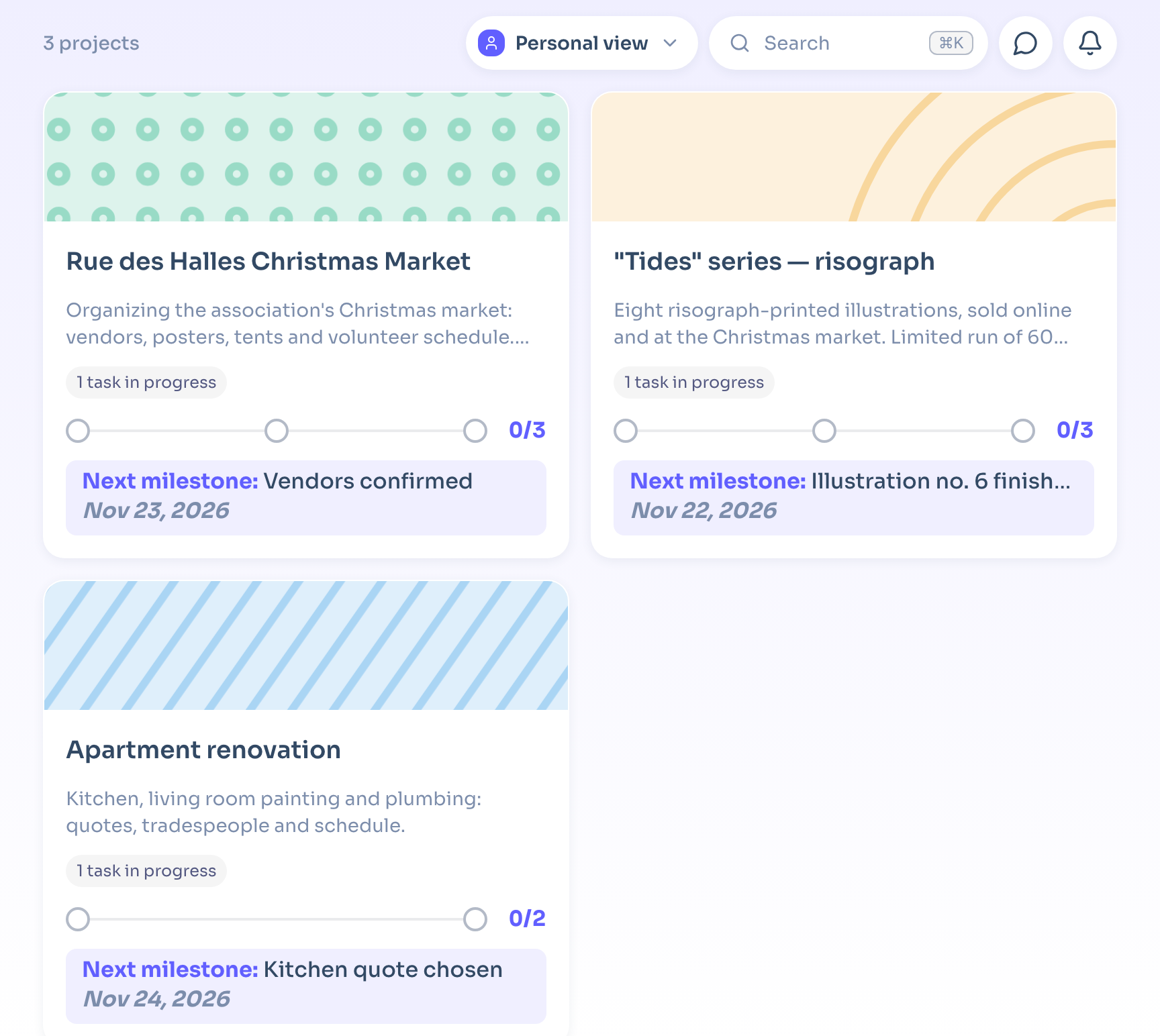
Projects shows one card per project, with its tasks in progress and its next milestone.
The New button
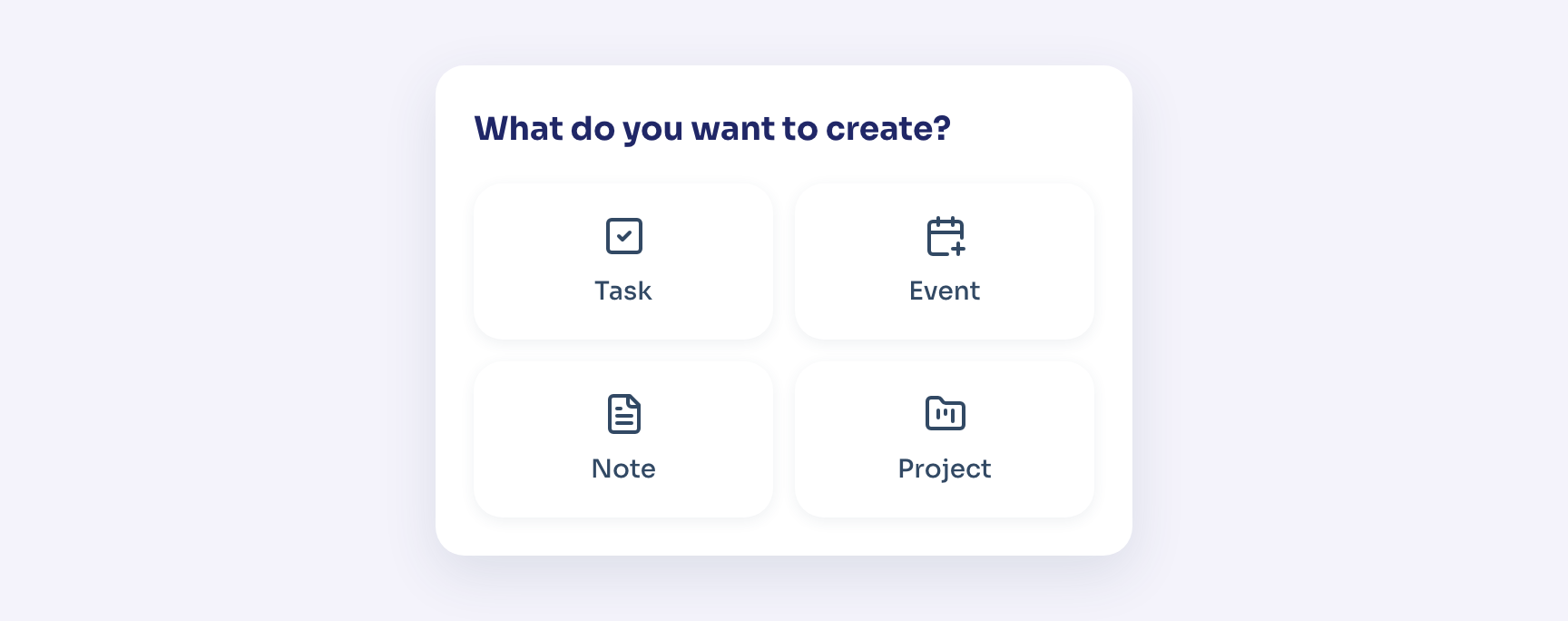
New creates what fits the page you're on: a task in Tasks, an event in the Calendar. Hold it down to open What do you want to create? and pick Task, Event, Note or Project. Inside a project, the menu also offers Date, Document and Collaborator.
Always up top: search, Cap and the bell
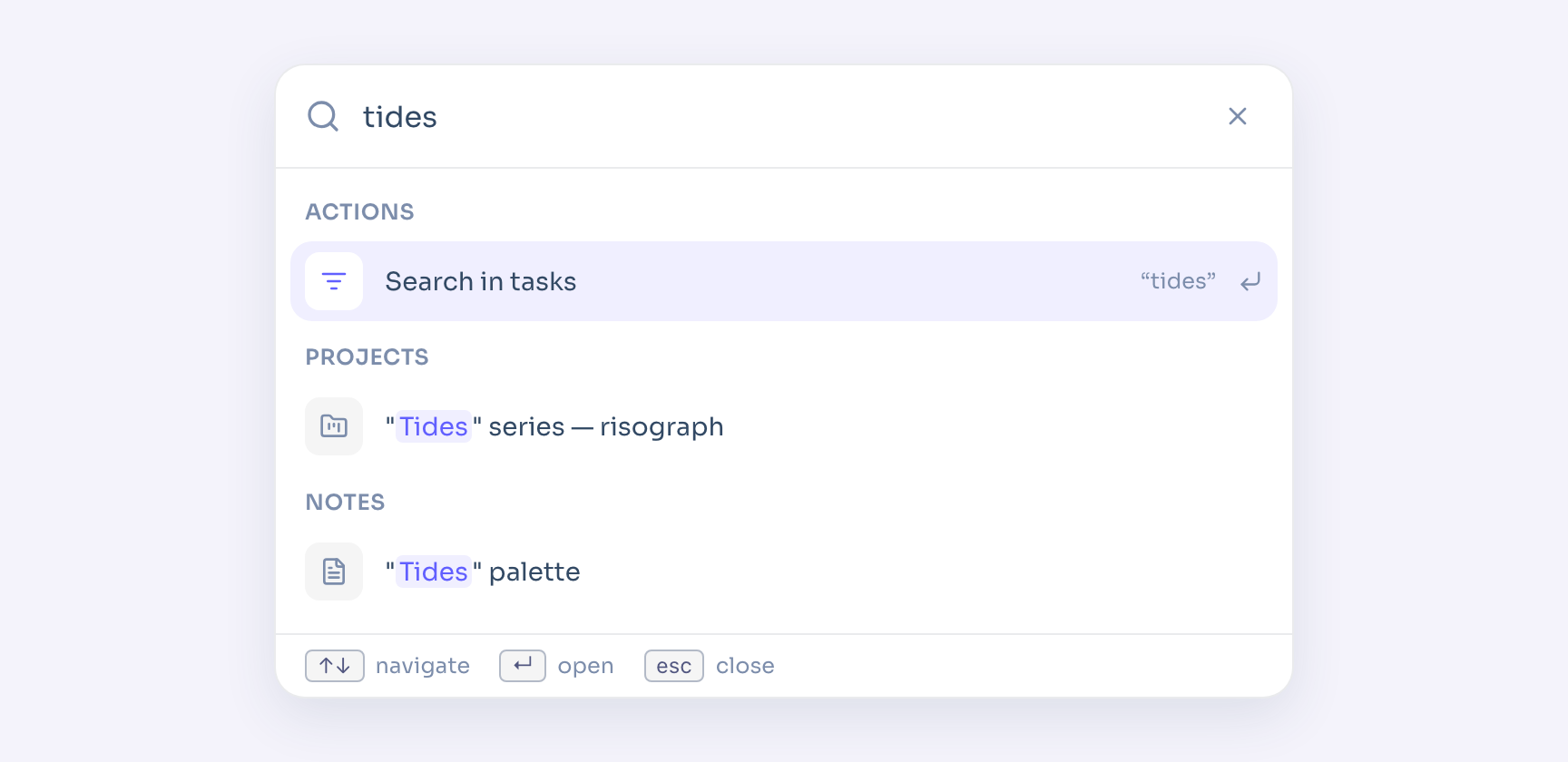
- Search (Ctrl+K, or Cmd+K on Mac) finds a task, a project or a note, and runs common actions.
- Open Cap opens the assistant, which answers your questions.
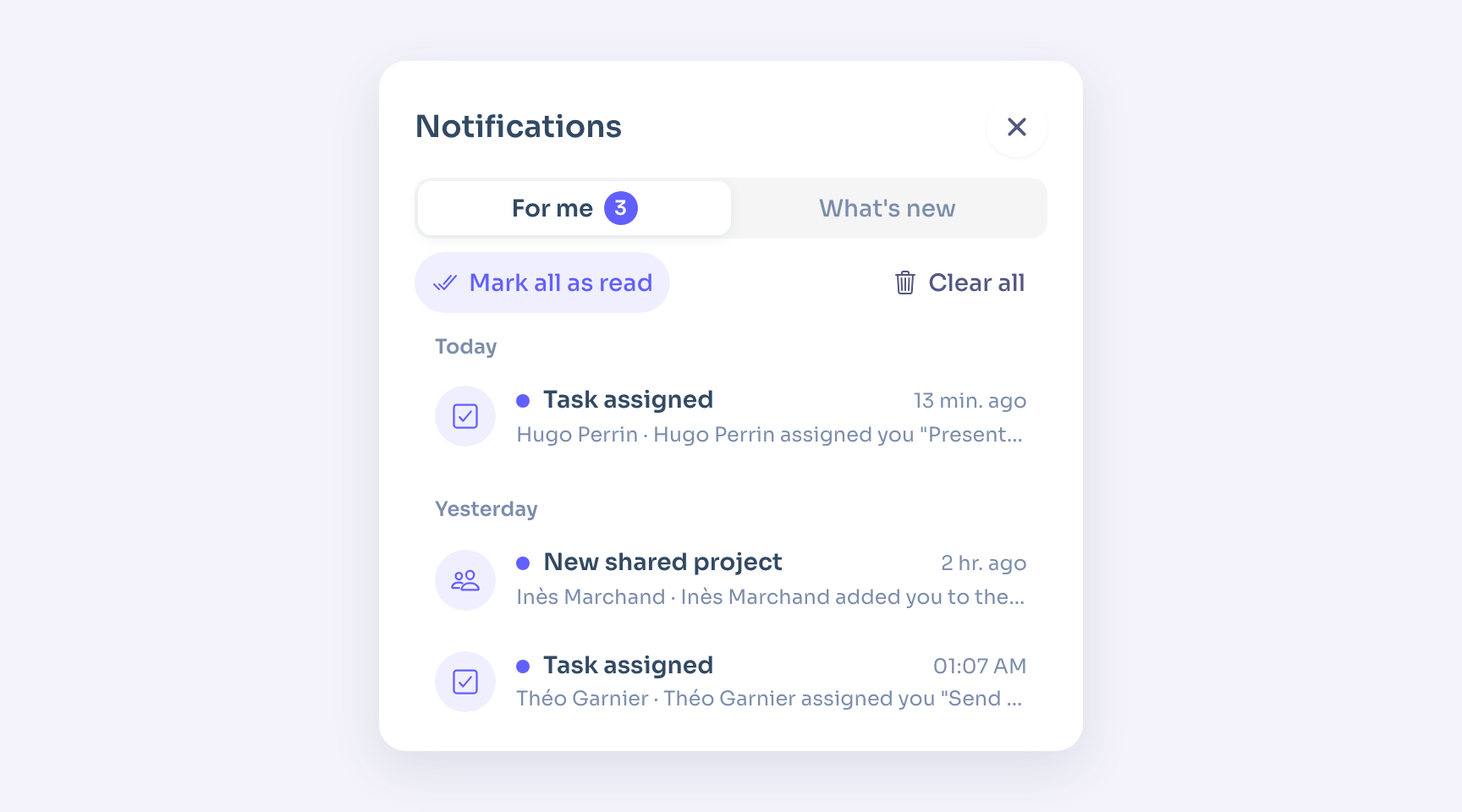
- The bell keeps your notifications in two tabs: For me and What's new (what's changing in the app).
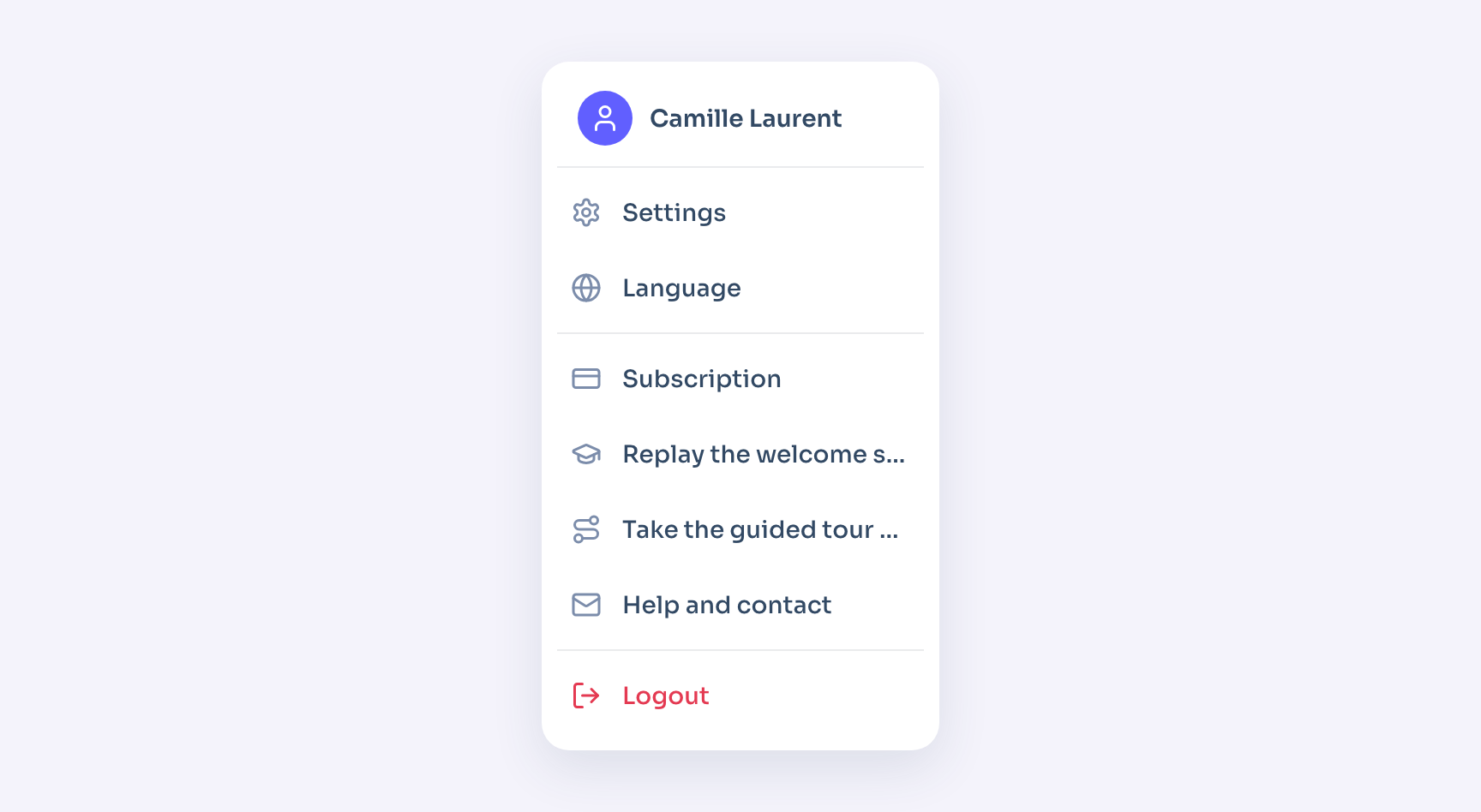
The gear leads to Settings. Your account menu gives you Language, Subscription, Help and contact, the welcome slides and guided tour, and Logout.
On mobile: the bottom bar
The mobile app keeps the same sections in a bar at the bottom of the screen: Tasks, Calendar, the + button, Docs and Projects (plus CRM if your plan includes it).
- Tap + to create what fits the screen.
- Press and hold it to choose New task, New event, New note, New contact or Add a document.
- In the list, swipe a task right to finish it, left to postpone it.
- Your avatar, at the top, opens My account and spaces.
What's next
Set your first settings so Flots opens on the right page and alerts you at the right time. To see what a complete setup looks like, follow the freelancer or startup and small team guide.